📲 Telegram Signal Integration
The Telegram Signal Integration is currently in beta. It is recommended to validate its behavior using a demo account before deploying it in a live trading environment.
The Telegram Signal Integration enables the automated reception and execution of trading signals from Telegram channels and groups. By connecting your Telegram account to MetaCopier via the official Telegram API, incoming messages are analyzed by an AI engine to identify actionable trading signals (e.g., open, close, modify).
Once a valid signal is detected, it is automatically executed on the linked trading account without any manual intervention. In essence, MetaCopier acts as an intelligent assistant that transforms Telegram messages into executable trading actions.
Requirements
To use the Telegram Signal Integration with MetaCopier, ensure the following:
- A PRO plan, the Telegram Signal Integration is a PRO feature
- One or more trading accounts connected to MetaCopier
- A Telegram account with access to the signal provider’s channel or group
Quick Start
Step 1: Get Telegram API Credentials
To communicate with your Telegram, you need to create API credentials. Please follow the steps below:
- Go to my.telegram.org and log in with your phone number
- Click on "API development tools"
- If you already have an API configured, proceed to step 6.
- Fill in the application form:
- App title: MetaCopier (or any name you prefer)
- Short name: metacopier (or any name you prefer)
- URL: <leave emtpy>
- Platform: Desktop
- Description: Trading signal integration
- Click "Create application"
- Copy and save your API ID and API Hash
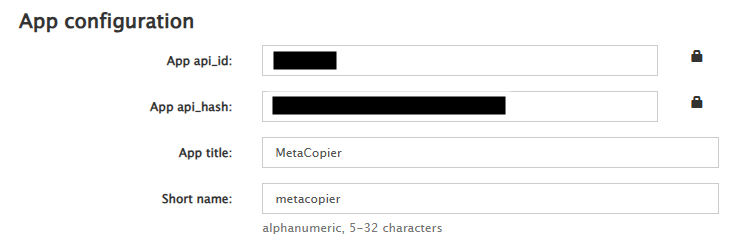
Keep your API credentials secure. Never share them with anyone.
Step 2: Create a Telegram Account in MetaCopier
Navigate to the Telegram section in your project and find the Telegram Signal Integration section. Click the "+" button to add a new Telegram account.
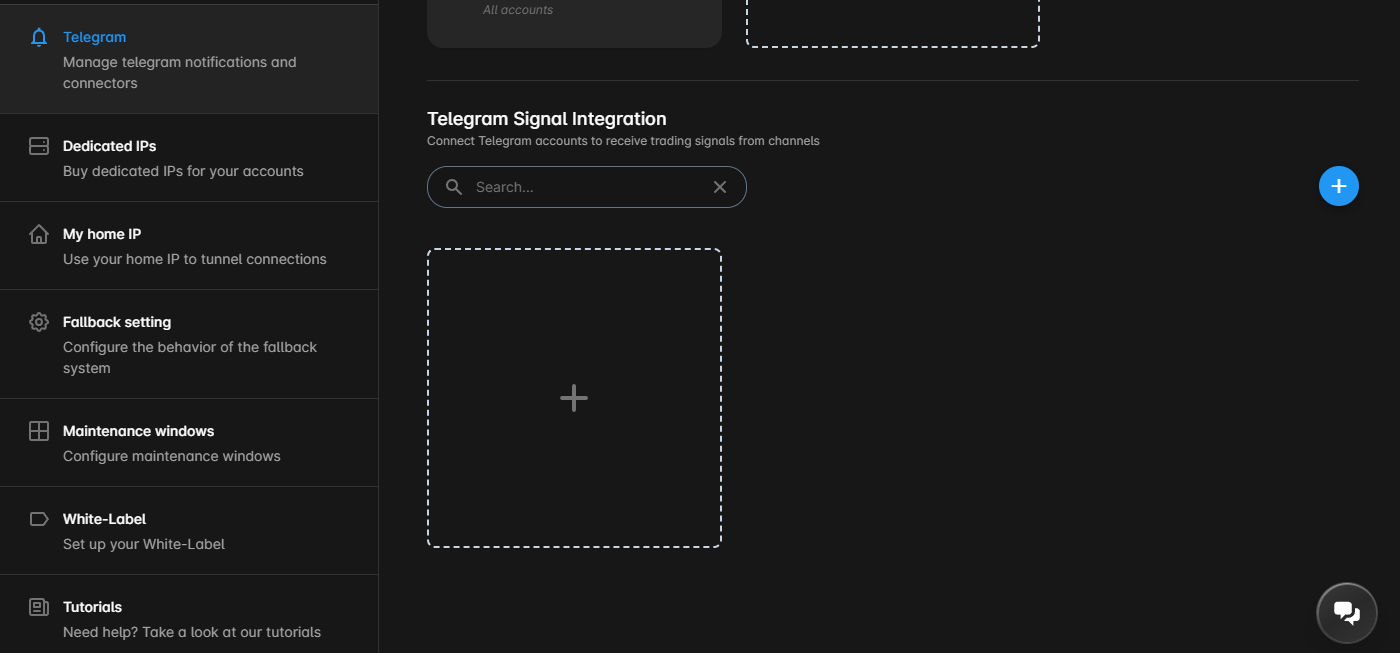
A setup dialog will open. Follow the workflow:
- Enter your API ID and API Hash from Step 1
- Enter your phone number in international format (e.g., +1234567890)
- Select the region that matches where your trading accounts are deployed
- Click Save
Important: Select a region that matches where your trading accounts are deployed. For example, if your trading account is in New York, select the New York region for your Telegram account.
Step 3: Complete Verification
After saving, Telegram will send a verification code. If you are already logged in to Telegram on another device (phone, desktop), the code arrives there as a message from the official "Telegram" chat, not as an SMS. Enter the code in MetaCopier to authorize the connection.
No code received? Click Resend code in the verification dialog. Telegram then sends the code again, usually via SMS or a phone call (the button shows which). The button is available again after a short waiting time set by Telegram.
If you have Two-Factor Authentication (2FA) enabled on your Telegram account, you'll also need to enter your 2FA password.
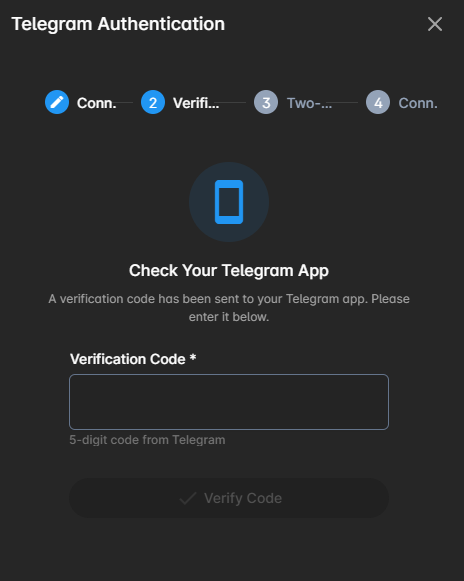
Once verified, a confirmation message will be displayed.
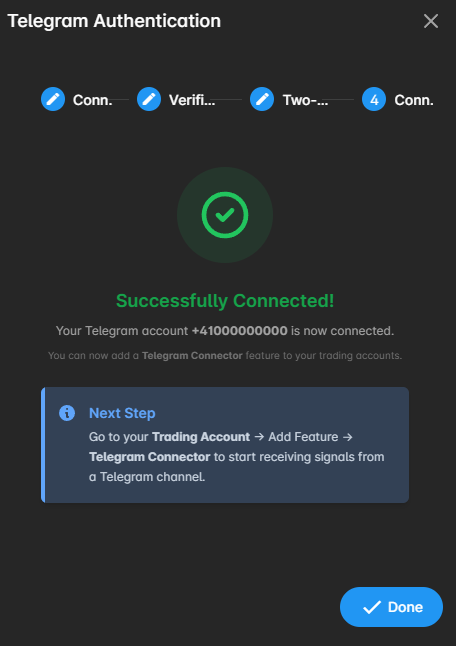
In Telegram, you will receive a notification asking you to confirm the login from the selected region. Please confirm by selecting “Yes, it’s me.”

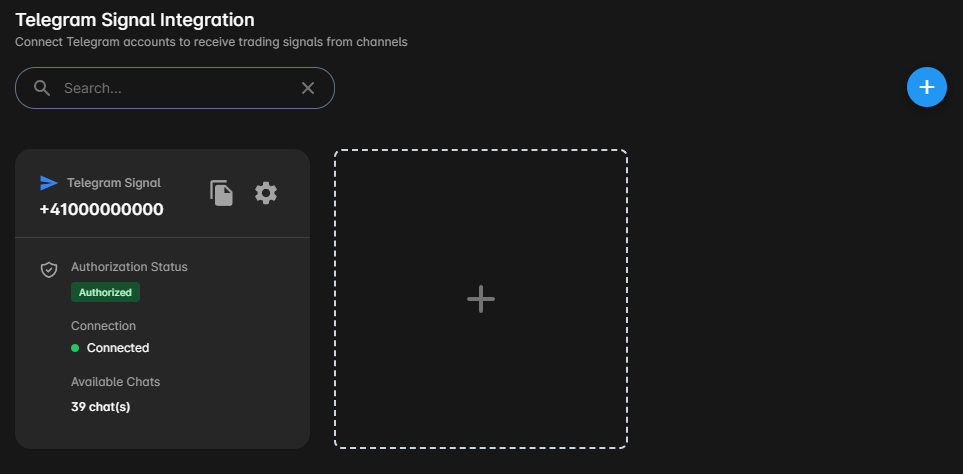
On the Telegram Signal Integration page, the status will change to “Authorized”, and your available chats will be loaded.
Step 4: Add Telegram Connector to Your Trading Account
Now you need to link a Telegram chat to your trading account. To add the Telegram Connector feature:
- Navigate to the Accounts page in your project.
- Locate the trading account you want to receive signals on.
- Click the Features button on that account.
- In the Features dialog, click the "+" (add) button.
- Select Telegram Connector from the list.
In the Telegram Connector dialog:
- Select the Telegram Account you created in Step 2
- Select the Chat/Channel you want to receive signals from. Groups that are organized in topics are listed once per topic, written as
Group -> Topic - Select the AI Model Tier (Basic, Standard, or Pro)
- Configure the connector settings (optional)
- Click Save
That's it! Signals from the selected Telegram chat will now be executed on your trading account.
Multiple Connectors: You can add multiple Telegram Connectors to the same trading account to receive signals from different channels. You can also connect the same channel to multiple trading accounts.
Groups with topics: Many providers organize their group in topics and post the signals in only one of them. Select the entry for that topic and messages from all other topics are ignored. If you select the group itself, every topic is processed. You can also create one connector per topic, for example to send each topic to a different trading account.
Step 5: Protect Your Account
Following signals from untrusted sources can expose your account to significant financial risk. It is essential to understand these risks and implement appropriate safeguards.
We strongly recommend using the following features:
- Risk Limiter: This is one of the most important protection tools. We recommend setting a strict limit on the account that is following the signals. The Risk Limiter allows you to automatically close all open positions if a predefined drawdown threshold is exceeded, helping to prevent excessive losses.
- Max Open Positions: This feature is useful for controlling exposure by limiting the number of simultaneously open positions. It ensures that your account does not exceed a predefined level of activity or risk.
- Maximum Lot Size: In the Telegram Connector, you can define a Maximum Allowed Volume to limit the lot size of each individual position. This helps ensure that no trade exceeds your predefined risk limits.
AI Signal Interpretation
Please note that the AI is intended for signal extraction and not for building strategies. If you intend to use break-even, trailing stop, risk limits, and similar features, please use the dedicated functionality provided for those purposes.
MetaCopier uses AI to interpret trading signals from Telegram messages. The AI understands various signal formats commonly used by signal providers.
Supported Signal Formats
The AI can detect signals in various formats:
Simple format:
BUY EURUSD
SL: 1.0800
TP: 1.0950
With lot size:
SELL GOLD 0.5 lot
SL 2650
TP1 2620
TP2 2600
Natural language:
Open a long position on GBPUSD at market price
Stop loss at 1.2550, take profit at 1.2700
Volume: 0.1
Signal provider style:
🟢 XAUUSD BUY NOW 2680
✅ TP1: 2695
✅ TP2: 2710
❌ SL: 2665
AI Instructions
Use the AI Instructions field to provide specific instructions for better signal interpretation:
Example AI instructions:
- "The signal provider uses GOLD instead of XAUUSD"
- "SL/TP values are always in points, not price"
- "Ignore messages from admin that contain 'announcement'"
- "Volume is specified in mini lots (multiply by 0.1)"
- "Only process messages that contain the 🔔 emoji"
- "Use half of the lot size defined in the chat message."
- "Always open signals with an entry price as a pending order at that price"
Variable risk per signal
Some signal providers mark individual signals with a different size, for example RISK 0,5RR, half risk or RISK 2RR, while all other signals should be traded with the normal size. Enable Per-signal risk multiplier (signalRiskMultiplierEnabled) on the connector to handle this:
- The AI detects the size hint and returns it as a multiplier (e.g.
RISK 0,5RR→0.5,RISK 2RR→2.0). - MetaCopier applies the multiplier to the size of the configured volume mode. It works with every volume mode:
FIXED,AI,BALANCE_SCALED,RISK_PERCENT,RISK_AMOUNTandMARGIN_PERCENT. - Signals without a size hint are traded with the normal size.
- The multiplier can reduce or increase the size, between
0.01and2.0(at most double size). Values above2.0are capped to2.0. maxAllowedVolumestill caps the final lot size, also when the multiplier increases the size.- With multiple take profits, the multiplier is applied first and the resulting size is split across the TP positions.
Example: volumeMode = RISK_AMOUNT, riskAmount = 500
| Signal | Risk used |
|---|---|
SELL XAUUSD SL 2420 TP 2380 | $500 |
SELL XAUUSD SL 2420 TP 2380 RISK 0,5RR | $250 |
| Same signal with TP1 and TP2 | $125 per position |
SELL XAUUSD SL 2420 TP 2380 RISK 2RR | $1000 |
If your provider uses its own notation, describe it in the AI Instructions, e.g. "RISK 0,5RR means half size" or "⚠️ means quarter size".
With RISK_PERCENT, RISK_AMOUNT, MARGIN_PERCENT and BALANCE_SCALED, the lot size is calculated after the AI has read the message, so lot size rules in the AI Instructions have no effect in these modes. Use the per-signal risk multiplier instead. The setting is disabled by default.
Volume below the minimum lot size
Some symbols have a larger minimum lot size at the broker than the volume of the signal, e.g. indices like US30 with a minimum of 1.0 lot. The option Round up to minimum lot size (forceMinTrade) defines what happens in this case:
- On (default): The volume is rounded up to the broker's minimum lot size. A
0.01signal on a symbol with a minimum of1.0opens1.00lot. - Off: The trade is skipped and an entry is written to the account log, e.g.
Telegram | Skipped buy US30 vol=0.01: Volume is below the broker's minimum lot size and rounding up to the minimum is disabled. The connector stays active.
This works with every volume mode. With RISK_PERCENT, RISK_AMOUNT and MARGIN_PERCENT the calculated lot size is checked. With multiple take profits, each TP position is checked with its split volume.
Independent of this option, a trade is always skipped if the broker's minimum lot size is above maxAllowedVolume, because opening it would exceed the safety cap.
Market and pending orders
The AI decides from the message whether a signal is a market order or a pending order:
- Market order: The signal has no entry price or says to enter now, e.g.
BUY GOLD NOW. The trade opens immediately at the current price. - Pending order: The signal has an entry price, e.g.
SELL LIMIT XAUUSD 2680orBUY GOLD @ 2650. The order is placed at that entry price.
The AI does not know the current market price. Before a pending order is sent, MetaCopier therefore checks the current price and picks the order type the broker accepts, keeping the entry price of the signal:
| Signal | Entry vs. current price | Order placed |
|---|---|---|
| Buy | Below the ask | Buy Limit |
| Buy | Above the ask | Buy Stop |
| Sell | Above the bid | Sell Limit |
| Sell | Below the bid | Sell Stop |
| Any | At the current price (within the spread) | Market order (Buy / Sell) |
When the order type is changed, an entry is written to the account log, e.g. Pending order type adjusted to the current price: BuyLimit -> BuyStop XAUUSD at 2650.0.
If your provider posts signals with an entry price that MetaCopier opens at market, but you want them placed as pending orders, describe this in the AI Instructions, e.g. "Always open signals with an entry price as a pending order at that price" or "If an entry range is given, use the first price of the range".
Pending orders require an account type that supports them. On most brokers a pending order is only a trigger: when the price is reached, it is filled at the next available price, which can differ slightly from the entry price. See Pending orders.
Validity of pending orders
Pending orders from Telegram signals are cancelled if they are not filled within 24 hours. You can change this per connector with Pending Order Validity (pendingOrderExpiryMinutes, 1 minute to 7 days). If the signal itself states a validity, e.g. "valid for 4 hours", the signal wins. This applies to all account types, including MetaTrader 4, MetaTrader 5 and cTrader. MetaCopier cancels the order itself after the validity, so it also works on symbols where the broker only allows good-till-cancelled orders.
Pending orders on accounts without pending-order support
Only MetaTrader 4, MetaTrader 5 and cTrader accounts support pending orders natively. On other account types (e.g. crypto exchanges such as Bitunix, Binance, Bybit, Bitget, OKX, plus TradeLocker, MatchTrader, Tradovate, TradeStation and Alpaca), MetaCopier holds the pending order itself as a virtual pending order:
- The order is not sent to the broker. It appears in the open positions with the badge Virtual, volume
–and its expiry time. - MetaCopier checks the price every few seconds. As soon as the entry price is reached, a market order is sent with the SL and TP of the signal. The volume is calculated at that moment with your volume settings.
- If the price has already jumped beyond the SL or TP when the entry is reached, the order is cancelled instead of opened.
- After the validity (default 24 hours), the order is cancelled. Cancelling it in the terminal, a "cancel"/"close" signal, Close All, a risk limit or disabling/deleting the connector cancel it as well. The entry price, SL and TP can be modified; the volume cannot.
Keep in mind:
- A virtual limit order is not a guaranteed limit price. It is filled at the market price after the entry is reached, typically within about 10 seconds, so slippage is possible.
- Virtual pending orders need prices from the account. DXTrade delivers no prices, and Tradovate only with active market data. Without prices, signals with an entry price are skipped and the account log says why.
- Pending orders from the terminal, the REST API and the TradingView webhook become virtual pending orders the same way. A copier never creates them; see Pending orders.
- Up to 50 virtual pending orders per account.
Alternative: If you prefer the pending order to be held by a broker, or your account delivers no prices, use a MetaTrader 4, MetaTrader 5 or cTrader account in between and copy from there:
Telegram connector → MT5 / MT4 / cTrader account → Copier → your account (e.g. Bitunix)
- Add the Telegram connector to the MT4, MT5 or cTrader account instead of the target account. The pending order is placed there at the entry price of the signal.
- Create a copier from that account (master) to your target account (slave).
- The copier does not copy the pending order itself. As soon as it is filled on the master, the filled position is copied to the target account as a market order, including SL and TP. Closes and modifications from later signals are copied as well.
- If the symbol names differ between the two accounts (e.g.
BTCUSDon MT5 andBTCUSDTon the exchange), add a symbol mapping on the copier.
With this setup:
- The intermediate account must offer the symbols of the signals. A demo account is enough as long as its prices are close to the target account.
- The entry is triggered by the prices of the intermediate account. Prices can differ slightly from the target account.
- The copy adds a short delay (fill on the intermediate account, then copy to the target account).
- The intermediate account counts as an additional account in your project.
Accounts with one position per symbol (netting)
Some accounts hold only one position per symbol instead of a separate position per trade, for example MetaTrader netting accounts, crypto exchanges, Tradovate, TradeStation and Alpaca. See Multiple masters on one slave for the full list.
On these accounts, a new signal on a symbol that already has an open position does not open a separate trade:
- Volume: The new trade is added to the existing position. You see one larger position, not two trades.
- SL/TP: The SL and TP of the new signal replace the previous ones and apply to the whole position.
- Closing: When the SL or TP is hit, the whole position is closed, including the volume of the earlier signals.
This also applies to trades you open manually on the same symbol.
Keep a separate SL/TP per signal. Connect the Telegram signals to a MetaTrader hedging account (MT4, or MT5 in hedging mode; a demo account is enough) and copy from that account to your netting account. On the hedging account each signal is a separate trade with its own SL and TP. When one trade hits its SL or TP, only that trade is closed on the netting account, and the other trades stay open.
AI Model Tier
When creating a Telegram Connector, you can choose the AI model tier used for signal interpretation. The tier determines the quality and accuracy of the AI engine that analyzes your Telegram messages.
Two different things are called Pro. The PRO plan unlocks the Telegram Signal Integration itself. The Pro AI model tier is a separate, optional charge per connector. With a PRO plan you can run every connector on the free Basic tier, a higher tier is only needed if you want a stronger model.
| Tier | Description | Monthly Cost |
|---|---|---|
| Basic | Default model. Suitable for most standard signal formats. | Free |
| Standard | Enhanced model with better accuracy for complex signal formats. | $5/month (billed daily) |
| Pro | Premium model for maximum accuracy and advanced interpretation. | $10/month (billed daily) |
The AI Model Tier cannot be changed after the connector is created. To switch to a different tier, you must delete the connector and create a new one.
When selecting Standard or Pro, a confirmation dialog will appear showing the cost. The charge is calculated on a daily basis (monthly price ÷ 30 days).
Daily Message Limit: Each connector has a daily AI call limit that depends on the AI model tier:
- Basic – up to 100 messages per day
- Standard / Pro – up to 200 messages per day
Messages beyond this limit are ignored until the counter resets at midnight (server time). Messages excluded by the Message Filters below do not count against this limit. If the connector suddenly stops reacting, this is the most common cause - see How signals are read.
Message Filters (Include / Exclude)
Use Include or Exclude patterns to control which messages are sent to the AI for interpretation. Filters run before the AI call, so filtered-out messages are free: they do not consume your daily AI call quota.
Use either Include OR Exclude, not both. In the connector dialog, typing in one field automatically clears the other list. Pick the approach that best fits your chat:
- Exclude – drop noisy messages (announcements, promos, off-topic chatter) and let everything else through. Good when most messages are signals.
- Include – whitelist only messages matching at least one pattern and drop the rest. Good when the chat is full of noise and signals follow a recognizable pattern.
Semantics:
- Patterns are case-insensitive regular expressions and use substring matching (a pattern matches if it appears anywhere in the message).
- Exclude list: a message is skipped if any exclude pattern matches it.
- Include list: only messages matching at least one include pattern are sent to the AI. All other messages are dropped.
- Maximum 60 patterns per list. Each pattern is a separate chip in the dialog.
- Invalid regex patterns are rejected at save time.
Decision table (✅ = sent to AI, ❌ = skipped):
| Filter mode | Matches a pattern? | Result |
|---|---|---|
| Exclude | Yes | ❌ skipped (does not consume daily quota) |
| Exclude | No | ✅ sent to AI |
| Include | Yes | ✅ sent to AI |
| Include | No | ❌ skipped (does not consume daily quota) |
| Neither | n/a | ✅ sent to AI (no filter active) |
Examples:
| Mode | Pattern | Matches |
|---|---|---|
| Exclude | announcement | Skip any message containing the word "announcement" |
| Exclude | ^promo: | Skip messages that start with promo: |
| Exclude | \bgiveaway\b | Skip messages with the whole word "giveaway" |
| Exclude | https?:// | Skip any message containing a URL |
| Include | \b(buy|sell)\b | Only forward messages with the whole word "buy" or "sell" |
| Include | signal | Only forward messages containing the word "signal" |
| Include | 🔔 | Only forward messages containing the bell emoji |
| Include | \b(EURUSD|GBPUSD|XAUUSD)\b | Only forward messages mentioning one of these specific symbols |
Need a refresher on regular expressions? See the Regex cheat sheet for more examples.
Best Practices
Security
Protect your Telegram credentials:
- Never share your API ID, API Hash, or verification codes
- Use 2FA on your Telegram account for extra security
Performance
- Choose the right region: Select the region closest to your trading account's server for lower latency
- Start with a demo account: Test the integration with a demo account first to verify signals are interpreted correctly
- Use AI instructions: Provide clear AI instructions to help the AI understand your signal provider's format
- Monitor regularly: Check the connector status and review executed trades periodically. See results per connector
Multiple Signal Providers
You can subscribe to multiple signal providers by:
- Creating separate Telegram Connectors for each channel
- Using different magicNumber values to identify which provider triggered each trade
Results per connector
History and Analytics of an account with a Telegram Connector have a Source filter. Choose a connector to only see the trades it opened, or All sources for every trade of the account. The same filter also lists the copiers and signal subscriptions of the account (see results per copier). In the features list of the account, the clock and chart icons next to a Telegram Connector open the history and analytics already filtered on it.
Good to know:
- With a connector selected, Analytics only shows trade statistics (profit, win rate, profit factor, trades per symbol, ...). Account values such as balance, equity, growth and drawdown are hidden, because they belong to the whole account and cannot be split per connector.
- A trade belongs to the connector that opened it. On MT4 and MT5 this is stored when the position opens, so it holds even if the broker later replaces the comment (for example with
[sl]or[tp]). On other platforms, and for trades opened before this feature was released, the connector is read from the order comment. If the broker replaced that comment, the trade only appears under All sources. - Trades of a deleted connector stay in All sources. They cannot be selected separately.
Troubleshooting
Telegram Account Issues
"Code Required" status won't change?
- Check the chat from "Telegram" in your Telegram app on all devices where you are logged in - the code is usually sent there, not via SMS
- Enter the code exactly as received (no spaces)
- No code, or it expired? Click Resend code in the verification dialog to get a new one (usually via SMS or call). If Telegram cannot send it another way, close the dialog and click Reconnect
- Requesting codes too often makes Telegram block logins temporarily - wait the time shown before trying again
"Session Expired" error?
- Telegram sessions can expire after inactivity
- Edit the Telegram account and re-verify with a new code
Chats not loading?
- Make sure the account status is "Authorized"
- You must be a member of the channel/group to see it
- Private channels require an invite link to join first
- Topics of a group are cached, a newly created topic can take up to 15 minutes to appear
Connector Issues
How signals are read (and why signals stop)
Each incoming message passes the same steps. When a connector "silently stops copying", it is almost always one of these:
- Message filters - messages that do not match an Include pattern (or match an Exclude pattern) are dropped before the AI and do not count against the daily limit. See Message Filters.
- Message expiry - messages older than
messageExpiryMinutes(default10, max10080) are skipped. This shows up after Telegram outages, network delays or a server restart, when a backlog arrives late. See settings. - Daily AI limit - Basic is capped at 100 messages/day, Standard and Pro at 200. Once the cap is reached, every later message is skipped until the counter resets at midnight (server time). Filtered messages are free, so tighten the filters if you hit the cap regularly. See AI Model Tier.
- AI interpretation - the signal must pass the confidence threshold and an allowed action. A signal with an entry price becomes a pending order, not a market order. If a provider sends an entry range, add an AI instruction such as "If an entry range is given, use the first price of the range". See Market and pending orders.
- Message edits - a message is read once, at the moment it is posted. If the provider edits that same message afterwards (for example to add the entry price, SL or TP), the edit is not picked up; only a new message is processed. If a provider often posts a short alert and then edits in the levels, ask them to send the full signal as a new message.
Where to look: open the affected account and click Logs. Connector entries - processed/skipped signals, pending-order adjustments, daily-limit skips and connector errors - are written there (often prefixed with Telegram |). Use Audit logs to see configuration changes, for example if someone edited the connector or its filters.
Signals not being executed?
- Check that the connector is enabled
- Verify the Telegram account status is "Authorized"
- Check if the action is in the allowedActions list
- Review the connector's error message if status is "ERROR"
- Check the account Logs for daily-limit skips, message-expiry skips, or filter matches (see above)
Wrong symbol being traded?
- Use AI Instructions to specify symbol name mappings
- Example: "GOLD means XAUUSD, US30 means DJ30"
Volume not correct?
- Set volumeMode to
FIXEDand configure defaultVolume if signals don't include lot size - Set volumeMode to
BALANCE_SCALEDand configure lotsPerThousandBalance to automatically scale volume based on account balance - Set volumeMode to
AIto let AI determine volume based on the signal (customize via AI Instructions, e.g., "use 50% of signal volume") - Set volumeMode to
RISK_PERCENTand configure riskPercent to automatically size positions based on a percentage of your account balance (requires a stop loss and the account-level Risk Per Trade feature)
Before using RISK_PERCENT, you must:
- Add the Risk Per Trade feature to your account. You do not need to set a risk percentage or absolute risk amount - both values can be left at
0. This disables account-level risk limiting, but the tick value service still runs in the background, which is what the Telegram connector needs for lot size calculation. - Provide a tick value for each symbol you plan to trade. Two options:
- Automatic (recommended): Leave Tick value automatic adjustement enabled on the account-level Risk Per Trade feature, then open and close a few trades on each symbol - the trades must have some pips of profit or loss (not zero). The system detects the tick value from live and history trades. Until the first sample is collected, the connector returns
RISK_TICK_VALUE_UNAVAILABLE. - Manual: Disable Tick value automatic adjustement and enter the Tick value directly (globally or per symbol) on the account-level Risk Per Trade feature. Use this when you want to trade immediately without waiting for auto-detection, or when auto-detection is unreliable (very small or very few trades). See risk-per-trade-tick-value.md for how to calculate the tick value.
- Automatic (recommended): Leave Tick value automatic adjustement enabled on the account-level Risk Per Trade feature, then open and close a few trades on each symbol - the trades must have some pips of profit or loss (not zero). The system detects the tick value from live and history trades. Until the first sample is collected, the connector returns
- Set volumeMode to
MARGIN_PERCENTand configure marginPercent to size positions from a percentage of your free (available) margin - no stop loss and no Risk Per Trade feature required; it self-limits as your open exposure grows - Use forceVolumeMode =
trueto always use the configured volumeMode and ignore any volume specified in the signal - Use maxAllowedVolume as a safety cap for any volume mode
- Use AI Instructions to explain the volume format
- Enable signalRiskMultiplierEnabled if the provider marks some signals with a different size (e.g.
RISK 0,5RRorRISK 2RR), see Variable risk per signal - Disable forceMinTrade if trades on symbols with a large minimum lot size (e.g. indices) should be skipped instead of being opened with the minimum lot size, see Volume below the minimum lot size
SL/TP not being set?
- Set defaultStopLossPoints and defaultTakeProfitPoints
- Use AI Instructions to clarify if values are in points or price
Trade opened at market instead of at the entry price?
- The AI only places a pending order when the message contains an entry price. Add an AI instruction such as "Always open signals with an entry price as a pending order at that price"
- If the current price is already at the entry price (within the spread), the trade opens at market on purpose, see Market and pending orders
- Check the account log for
Pending order type adjustedorPending order opened at marketentries
Signal with an entry price not executed on a crypto exchange or another non-MetaTrader account?
- On these accounts the order is held by MetaCopier as a virtual pending order and only opens at market once the entry price is reached. Look for the Virtual badge in the open positions and for
placed (virtual, valid until …)in the account log expired,cancelledorprice already beyond SL/TPin the account log explain why it never opened. Increase Pending Order Validity if orders expire too early- DXTrade, and Tradovate without market data, cannot monitor prices, so these signals are skipped. Use the alternative Telegram → MT4/MT5/cTrader account → Copier → target account, see Pending orders on accounts without pending-order support
- Leverage has no influence on this. On crypto exchanges, the leverage is set on the exchange itself
Frequently Asked Questions (FAQ)
Can I use the same Telegram account for multiple trading accounts?
Yes. Create one Telegram account at the project level, then add multiple Telegram connectors to different trading accounts, all linked to the same Telegram account.
Does this work with private channels?
Yes, as long as your Telegram account is a member of the private channel.
The provider posts the signals in one topic of a group. Can I follow only that topic?
Yes. Groups with topics are listed once per topic as Group -> Topic. Pick the topic that carries the signals and everything posted in the other topics is ignored. Selecting the group itself processes all topics.
What happens if the signal provider sends multiple signals quickly?
Each signal is processed independently. Consider using the Max Open Positions feature to limit exposure.
I receive a second signal on the same symbol while the first trade is still open. What happens?
On accounts with separate positions per trade (e.g. MetaTrader hedging accounts), the second signal opens a new trade with its own SL and TP. On accounts with one position per symbol (e.g. MetaTrader netting accounts, crypto exchanges, Alpaca), the volume is added to the existing position and the SL/TP of the new signal replace the previous ones for the whole position. See Accounts with one position per symbol.
Can I filter which signals to trade?
Yes. Use allowedActions to restrict specific actions, and apply AI instructions to filter by keywords, emojis, or message patterns.
Is there a delay in signal execution?
Signals are processed in near real-time (typically under one second). The primary latency depends on Telegram’s message delivery.
What if the AI misinterprets a signal?
Review the trade in your account logs and adjust the AI instructions to improve accuracy. You can also set allowedActions to an empty array ([]) to pause execution during testing.
Settings details
Telegram Account
| Option | Type | Default | Description |
|---|---|---|---|
apiId | number | - | Your Telegram API ID from my.telegram.org |
apiHash | string | - | Your Telegram API Hash from my.telegram.org |
phoneNumber | string | - | Phone number in international format (+1234567890) |
regionId | number | - | Region where the Telegram client runs |
includePrivateChats | boolean | false | Include private chats in the available chats list (default: only groups/channels) |
Telegram Connector
| Option | Type | Default | Description |
|---|---|---|---|
telegramAccountFeatureId | UUID | - | Reference to the Telegram Account feature ID (required) |
chatId | number | - | Telegram chat ID to subscribe to (required) |
forumTopicId | number | - | Topic inside a group with topics. Only messages of that topic are processed. Empty means the whole chat (optional) |
chatTitle | string | - | Chat title (read-only, populated automatically) |
enabled | boolean | true | Enable/disable signal processing |
allowedActions | array | all | Allowed actions: open, close, modify. Empty = all |
aiInstructions | string | - | AI instructions for signal interpretation (max 2000 characters). Use this to customize how the AI interprets signals. The default prompt is always included. Examples: symbol mappings, volume adjustments, filtering rules |
aiTier | string | BASIC | AI model tier: BASIC (free), STANDARD ($5/month), or PRO ($10/month). Can only be set on creation - cannot be changed after the connector is created |
volumeMode | string | FIXED | Volume calculation mode: FIXED (use defaultVolume), BALANCE_SCALED (calculate from account balance), AI (let AI determine volume based on signal), RISK_PERCENT (calculate lot size from risk percentage of account balance - requires riskPercent, a stop loss, and the account-level Risk Per Trade feature enabled), RISK_AMOUNT (calculate lot size from a fixed currency amount - requires riskAmount, a stop loss, and the account-level Risk Per Trade feature enabled), or MARGIN_PERCENT (size the position to use a percentage of your free/available margin - requires marginPercent, no stop loss and no Risk Per Trade feature needed) |
forceVolumeMode | boolean | false | If true, always use volumeMode calculation and ignore any volume specified in the signal. If false, use signal volume when provided. Note: forceVolumeMode=true with volumeMode=AI falls back to defaultVolume |
maxAllowedVolume | number | 1.0 | Maximum allowed volume safety limit (min 0.001). Applies to ALL volume modes. Calculated volume is capped to this value |
defaultVolume | number | - | Default lot size if not specified in signal (min 0.001, used when volumeMode=FIXED) |
lotsPerThousandBalance | number | 0.01 | Lots per 1000 balance (min 0.001, used when volumeMode=BALANCE_SCALED). Example: balance 10000 with value 0.01 = 0.1 lots |
riskPercent | number | - | Risk per trade as percentage of account balance (0.01–100, used when volumeMode=RISK_PERCENT). Requires a stop loss (from signal or defaultStopLossPoints) and the account-level Risk Per Trade feature enabled for tick value configuration |
riskAmount | number | - | Risk per trade as fixed currency amount (e.g., 100 = $100, used when volumeMode=RISK_AMOUNT). Requires a stop loss (from signal or defaultStopLossPoints) and the account-level Risk Per Trade feature enabled for tick value configuration |
marginPercent | number | - | Percentage of free (available) margin the position should use (0.01–100, used when volumeMode=MARGIN_PERCENT). No stop loss required and the Risk Per Trade feature is not needed. Formula: (freeMargin × marginPercent / 100) / marginPerLot. Not available on accounts that do not report margin (e.g. some crypto/CEX accounts) |
signalRiskMultiplierEnabled | boolean | false | If true, the AI detects a different size per signal (e.g. RISK 0,5RR → 0.5, RISK 2RR → 2.0) and the size of the configured volume mode is multiplied by it. Works with all volume modes. The multiplier is limited to 0.01–2.0 (at most double size), maxAllowedVolume still applies; signals without a size hint use the normal size. See Variable risk per signal |
forceMinTrade | boolean | true | If true, a volume below the broker's minimum lot size of the symbol is rounded up to the minimum. If false, the trade is skipped and logged instead. A trade is always skipped if the minimum lot size is above maxAllowedVolume. See Volume below the minimum lot size |
defaultStopLossPoints | number | - | Default SL in points if not in signal (min 0) |
defaultTakeProfitPoints | number | - | Default TP in points if not in signal (min 0) |
magicNumber | number | - | Magic number for positions from this connector |
comment | string | - | Position comment (max 20 characters). See note below on comment behavior |
messageExpiryMinutes | number | 10 | Maximum message age in minutes (1–10080). Messages older than this are skipped (e.g., due to network delays, Telegram outages, or server restarts). Default is 10 |
pendingOrderExpiryMinutes | number | 1440 | Validity of pending orders in minutes (1–10080). Unfilled pending orders are cancelled after this time. A validity stated in the signal takes precedence. Applies to native and virtual pending orders, see Validity of pending orders |
confidenceThreshold | number | 70 | AI confidence threshold (0–100). Only signals with confidence >= this threshold are executed. Lower = more signals (but more false positives), higher = fewer signals (but more reliable) |
contextMessageCount | number | 5 | Number of recent messages included as AI context (1–10). Higher values give the AI more context for multi-message signals but consume more tokens |
includePatterns | array | - | Optional list of case-insensitive regex patterns (max 60). If non-empty, only messages matching at least one pattern are sent to the AI. Substring match semantics. Mutually exclusive with excludePatterns (use one or the other, not both) |
excludePatterns | array | - | Optional list of case-insensitive regex patterns (max 60). Messages matching any pattern are skipped before the AI call and do not count against the daily AI call limit. Mutually exclusive with includePatterns (use one or the other, not both) |
status | string | PENDING | Connector status (read-only) |
errorMessage | string | - | Error message if status is ERROR (read-only) |
lastMessageAt | datetime | - | Last message processed timestamp (read-only) |
Comment Truncation: MetaCopier uses the trade comment field internally to track positions opened by the Telegram connector (format: TG|messageId.tpIndex). This is required for reliable close/modify operations. Since MT4/MT5 brokers typically limit the comment field to 25–31 characters, the comment value you configure may be truncated or partially visible on the broker side. The Telegram channel name or original signal text is not included in the MT5 comment field due to these broker-imposed length constraints. Use magicNumber if you need to identify trades from a specific connector. If truncated comments are a problem for you, write to support@metacopier.io; we can enable server-side comment restoration for your account so the REST API returns the full text.
Authorization Status
| Status | Description |
|---|---|
PENDING | Waiting for initial setup |
CODE_REQUIRED | Verification code sent (Telegram app, SMS or call) |
PASSWORD_REQUIRED | 2FA password required |
AUTHORIZED | Connected and ready |
FAILED | Authorization failed |
SESSION_EXPIRED | Session expired, re-authorization needed |
DISCONNECTED | Disconnected from Telegram |
Connector Status
| Status | Description |
|---|---|
PENDING | Connector created, waiting for activation |
ACTIVE | Receiving and processing messages |
PAUSED | Temporarily paused (enabled = false) |
ERROR | Error occurred (check error message) |
DISCONNECTED | Parent Telegram account disconnected |