🔐 Access Policy
Overview
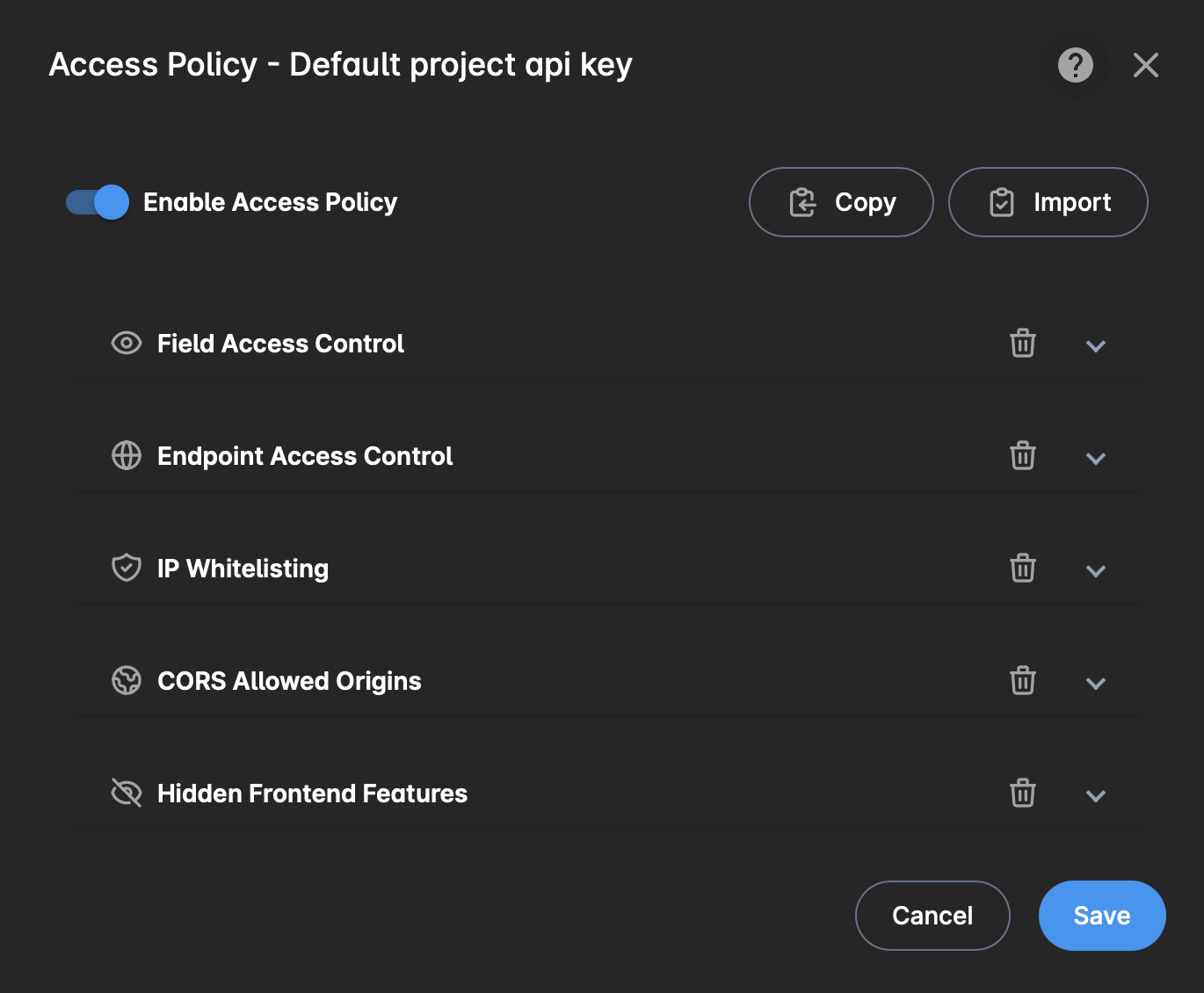
The API Key Access Policy feature provides fine-grained control over what data and functionality each API key can access. This powerful security feature allows you to create restricted API keys that only have access to specific endpoints, account fields, IP addresses, CORS origins, and frontend features.
Access policies can be configured for:
- Project-level API keys - provide access to all trading accounts in the project
Key Benefits
- Enhanced Security: Limit API key exposure by granting only necessary permissions
- Multi-tenant Support: Share your project with third parties while controlling what they can see and do
- Compliance: Meet data privacy requirements by hiding sensitive account information
- Customization: Create white-label experiences by hiding specific frontend features
- Audit Trail: Track which API keys have access to what resources
How It Works
Each API key can have an optional access policy attached. When enabled, the access policy acts as a security layer that:
- Filters Account Data: Controls which fields are visible in account information responses
- Restricts Endpoints: Limits which REST API endpoints can be accessed
- Validates IP Addresses: Only allows requests from whitelisted IP addresses or CIDR ranges
- Controls CORS: Restricts which domains can make cross-origin requests
- Hides Features: Removes specific UI features from the frontend application
If the access policy is disabled (enabled: false), the API key has full access to all resources.
Configuration
Enabling Access Policy
For Project-level API Keys:
- Navigate to Projects → API Keys
- Click the menu icon (three dots) on an API key card
- Select Access Policy from the dropdown menu
- Toggle Enable Access Policy to activate restrictions
For Account API Keys:
Account API keys are automatically generated when an account is created. You can retrieve them using the getAccountApiKeys endpoint. Access policies for these keys can be configured through the API or web interface.
Note: The access policy has an enabled field. When set to false, all restrictions are disabled and the API key has full access, regardless of configured rules.
Policy Modes
Most sections support two policy modes:
Allow List (Whitelist)
- Only items in the list are accessible
- Everything else is blocked
- Use when you want to grant access to specific resources
Deny List (Blacklist)
- Items in the list are blocked
- Everything else is accessible
- Use when you want to restrict access to specific resources
Field Access Control
Control which fields are visible in API responses. Field filtering is supported for the following DTOs:
- AccountDTO - Fields returned by
GET /accountsandGET /accounts/{accountId}(e.g.loginServer,loginAccountNumber) - AccountInformationDTO - Fields returned by
GET /accounts/{accountId}/information - CopierDTO - Fields returned by
GET /accounts/{accountId}/copiersandGET /accounts/{accountId}/copiers/{copierId}
Configuration
- Select Field Policy Mode:
- Allow List: Only listed fields are visible
- Deny List: Listed fields are hidden
- Click Add Field to add field restrictions
- Select fields from the dropdown (shows DTO class name, field name, and type)
- Click the trash icon to remove a field
- Click the header trash icon to clear all fields
Note: The policy mode applies globally across all DTOs. You cannot use ALLOW_LIST for one DTO and DENY_LIST for another within the same access policy.
Examples
Example 1: Hide Sensitive Financial Data
Use Case: Share API access with a portfolio analytics service that doesn't need to see your actual balance or equity.
Configuration:
- Policy Mode:
DENY_LIST - Fields:
balanceequitycreditunrealizedProfitprofitThisMonthprofitThisWeekprofitToday
Result: The API key can see all account information except balance, equity, credit, and profit-related fields.
Example 2: Only Show Basic Account Status
Use Case: Provide read-only access to a trade monitoring dashboard with basic information only.
Configuration:
- Policy Mode:
ALLOW_LIST - Fields:
AccountInformationDTO: currencyAccountInformationDTO: leverageAccountInformationDTO: connectedAccountInformationDTO: statusAccountInformationDTO: openPositionsCountAccountInformationDTO: pendingOrdersCount
Result: Only the specified fields are visible; all other fields return null or are omitted.
Example 3: Hide Copier Configuration (Multipliers)
Use Case: Share copier data with a developer building a monitoring dashboard, but hide proprietary configuration like multipliers and lot sizing.
Configuration:
- Policy Mode:
DENY_LIST - Fields:
CopierDTO: multiplierCopierDTO: scaleTypeCopierDTO: fixedLotSizeCopierDTO: fixMasterBalanceAndEquityCopierDTO: fixSlaveBalanceAndEquityCopierDTO: maxLotSizeCopierDTO: maximumLotCopierDTO: martingaleStrategyCopierDTO: reverse
Result: The API key can access copier endpoints to see which accounts are connected (master/slave mapping), but configuration details like multipliers are hidden.
Example 4: Copier Mapping Only (Minimal Access)
Use Case: Expose only the copier relationship mapping without any configuration.
Configuration:
- Policy Mode:
ALLOW_LIST - Fields:
CopierDTO: idCopierDTO: fromAccountIdCopierDTO: fromAccountAliasCopierDTO: toAccountIdCopierDTO: activeCopierDTO: monitorOnly
Result: Only the copier relationship information is visible - all multipliers, lot sizing, and advanced settings return null.
Example 5: Hide Broker Login Credentials from AccountDTO
Use Case: Expose account endpoints to a developer while hiding broker login details.
Configuration:
- Policy Mode:
DENY_LIST - Fields:
AccountDTO: loginAccountPasswordAccountDTO: loginServerAccountDTO: loginAccountNumber
Result: The developer can access GET /accounts and GET /accounts/{accountId} to see account metadata (alias, type, status, region) but broker credentials are hidden.
Endpoint Access Control
Restrict which REST API endpoints can be accessed with the API key.
Configuration
- Select Endpoint Policy Mode:
- Allow List: Only listed endpoints are accessible (recommended)
- Deny List: Listed endpoints are blocked
- Click Add Endpoint to add a new endpoint rule
- Enter the endpoint path or click the search icon to browse available endpoints
- Select the HTTP method:
GET,POST,PUT,DELETE, orALL - Click the trash icon to remove an endpoint
- Click the header trash icon to clear all endpoints
Path Wildcards
The endpoint path supports powerful wildcard patterns:
*- Matches a single path segment- Example:
/rest/api/v1/projects/*/accountsmatches/rest/api/v1/projects/123/accountsbut not/rest/api/v1/projects/123/accounts/456
- Example:
**- Matches multiple path segments (zero or more)- Example:
/rest/api/v1/projects/**matches all endpoints under projects including nested paths
- Example:
{variable}- Matches a path variable- Example:
/rest/api/v1/projects/{projectId}/accounts/{accountId}
- Example:
Examples
Example 1: Read-Only API Key
Use Case: Create an API key that can only read data, not modify it.
Configuration:
-
Policy Mode:
ALLOW_LIST -
Endpoints:
/rest/api/v1/projects/** GET/rest/api/v1/accounts/** GET/rest/api/v1/strategies/** GET/rest/api/v1/signals/** GET
Result: The API key can GET any resource but cannot POST, PUT, or DELETE.
Example 2: Account Management Only
Use Case: Delegate account management to a third party without exposing other resources.
Configuration:
-
Policy Mode:
ALLOW_LIST -
Endpoints:
/rest/api/v1/accounts/** ALL
Result: Full access to all account endpoints, but no access to projects, strategies, signals, etc.
Example 3: Block Dangerous Operations
Use Case: Prevent accidental deletion of resources.
Configuration:
-
Policy Mode:
DENY_LIST -
Endpoints:
/rest/api/v1/accounts/* DELETE/rest/api/v1/accounts/*/copiers/* DELETE/rest/api/v1/projects/*/strategies/* DELETE/rest/api/v1/projects/*/symbolMappings/* DELETE
Result: All operations are allowed except DELETE on major resources.
Example 4: Performance Analytics Only
Use Case: Expose only performance metrics and history data.
Configuration:
-
Policy Mode:
ALLOW_LIST -
Endpoints:
/rest/api/v1/accounts/*/performanceMetrics GET/rest/api/v1/accounts/*/history/positions GET/rest/api/v1/reports/performance POST
Result: Only performance metrics and historical data endpoints are accessible.
IP Whitelisting
Restrict API access to specific IP addresses or CIDR ranges.
Configuration
- Click Add IP Address
- Enter an IP address or CIDR range
- Click the trash icon to remove an IP
- Click the header trash icon to clear all IPs
Supported Formats
- Single IP:
192.168.1.100 - CIDR Range:
192.168.1.0/24(allows 192.168.1.0 - 192.168.1.255) - Broader Range:
10.0.0.0/8(allows all 10.x.x.x addresses)
Examples
Example 1: Office Network Only
Use Case: Only allow API access from your office network.
Configuration:
- IP Addresses:
203.0.113.0/24(office network range)
Result: Requests from other IPs receive a 403 Forbidden error.
Example 2: Multiple Locations
Use Case: Allow access from multiple office locations and a VPN server.
Configuration:
- IP Addresses:
203.0.113.0/24(main office)198.51.100.0/24(branch office)192.0.2.50(VPN server)
Example 3: Cloud Service Integration
Use Case: Integrate with a specific cloud service that uses known IP ranges.
Configuration:
- IP Addresses:
52.84.0.0/15(CloudFront)54.239.0.0/16(AWS)
CORS Allowed Origins
Control which domains can make cross-origin requests to the API when using this key.
Always Allowed Origins:
metacopier.ioand all subdomains
These domains are always allowed regardless of the CORS configuration.
Configuration
- Click Add CORS Origin
- Enter the origin URL
- Click the trash icon to remove an origin
- Click the header trash icon to clear all origins
Supported Formats
- Exact Domain:
https://example.com - Subdomain Wildcard:
https://*.example.com(matches any subdomain) - All Origins:
*(allows any origin)
Note: Origin matching is case-insensitive for better compatibility.
Examples
Example 1: Production Website Only
Use Case: Only allow your production website to use the API.
Configuration:
- CORS Origins:
https://www.myapp.comhttps://myapp.com
Result: Browser requests from other origins are blocked by CORS policy.
Example 2: Development and Production
Use Case: Allow both local development and production access.
Configuration:
- CORS Origins:
http://localhost:4200http://localhost:3000https://*.myapp.com
Example 3: Multiple Subdomains
Use Case: Support multiple customer-facing subdomains.
Configuration:
- CORS Origins:
https://*.clients.example.com
Result: Allows https://customer1.clients.example.com, https://customer2.clients.example.com, etc.
Hidden Frontend Features
Hide specific UI features in the frontend application when using this API key.
Configuration
- Click Add Hidden Feature
- Select a feature from the dropdown (shows display name and description)
- Click the trash icon to remove a feature
- Click the header trash icon to clear all features
Available Features
The list of hideable features is loaded dynamically from the backend and may include:
- Navigation menu items
- Dashboard widgets
- Action buttons
- Settings panels
- Report sections
- And more...
Examples
Example 1: White Label Partner Access
Use Case: Provide a white-label version of your platform to a partner without showing financial data.
Configuration:
- Hidden Features:
FINANCIAL_OVERVIEW
Result: Partner sees a clean interface without financial overview sections.
Example 2: Hide Financial Data in UI
Use Case: Give investors view-only access without showing sensitive financial information.
Configuration:
- Hidden Features:
FINANCIAL_OVERVIEW
Result: Investors can view trading activity but cannot see financial overview widgets.
Note: The currently available features are loaded dynamically from the backend. Check /rest/api/v1/projects/{projectId}/apiKeys/availableFrontendFeatures endpoint for the complete list of hideable features.
Example 3: Query Available Features
Use Case: Discover what frontend features can be hidden.
API Call:
GET /rest/api/v1/projects/{projectId}/apiKeys/availableFrontendFeatures
Response:
[
  {
    "id": "FINANCIAL_OVERVIEW",
    "name": "Financial Overview",
    "description": "Hide financial overview"
  }
]
Result: You can dynamically discover and configure which features to hide based on the available options.
Complete Example: Third-Party Integration
Let's create a comprehensive access policy for a third-party analytics provider.
Requirements
- Read-only access to account data
- Hide sensitive financial information
- Only allow their office IP range
- Only allow requests from their dashboard domain
- Hide advanced trading features
Configuration
1. Enable Access Policy
Toggle: ON
2. Field Access Control
- Policy Mode:
DENY_LIST - Fields:
balanceequitycreditusedMarginfreeMarginunrealizedProfitprofitThisMonthprofitThisWeekprofitToday
3. Endpoint Access Control
-
Policy Mode:
ALLOW_LIST -
Endpoints:
/rest/api/v1/accounts GET/rest/api/v1/accounts/* GET/rest/api/v1/accounts/*/information GET/rest/api/v1/accounts/*/positions GET/rest/api/v1/accounts/*/history/positions GET/rest/api/v1/accounts/*/performanceMetrics GET
4. IP Whitelisting
- IP Addresses:
198.51.100.0/24
5. CORS Allowed Origins
- CORS Origins:
https://analytics.partner.comhttps://dashboard.partner.com
6. Hidden Frontend Features
- Features:
FINANCIAL_OVERVIEW
Result
The partner can:
- ✅ View account information (without financial details)
- ✅ Access trade history and analytics
- ✅ Make requests from their IP range
- ✅ Load the API from their domains
- ✅ See a clean, read-only interface
The partner cannot:
- ❌ See account balances, margins, or profits
- ❌ Create, edit, or delete accounts
- ❌ Execute or modify trades
- ❌ Access from unauthorized IPs
- ❌ Make POST, PUT, or DELETE requests to non-allowed endpoints
- ❌ See financial overview in the frontend
Best Practices
1. Use Allow Lists for Maximum Security
When possible, use ALLOW_LIST mode for endpoints. This ensures that new endpoints added in the future are automatically blocked unless explicitly allowed.
2. Start Restrictive, Then Expand
Start with minimal permissions and add more as needed. It's easier to grant additional access than to revoke it.
3. Combine Multiple Restrictions
Use multiple access controls together for defense in depth:
- Field filtering + Endpoint restrictions
- IP whitelisting + CORS origins
- Feature hiding + Read-only endpoints
4. Document Your Policies
Keep documentation of what each API key is for and what access it has. This helps during security audits and troubleshooting.
5. Regular Audits
Periodically review your API keys and their access policies. Remove unused keys and update policies as requirements change.
6. Test Thoroughly
After configuring an access policy, test it thoroughly to ensure:
- Allowed operations work as expected
- Blocked operations return appropriate errors
- No unintended side effects
7. Use Descriptive Aliases
Give your API keys descriptive aliases that indicate their purpose and access level:
analytics-readonlypartner-whitelabelmobile-app-production
8. Monitor Usage
Track API key usage through audit logs to detect:
- Unusual access patterns
- Failed authorization attempts
- Unexpected endpoint access
API Response Behavior
Endpoint Restrictions
When an endpoint is blocked:
-
HTTP Status:
403 Forbidden -
Response Body:
{"error": "[FORBIDDEN_ENDPOINT_NOT_ALLOWED]","message": "This API key does not have access to this endpoint."}
Field Filtering
When fields are filtered:
- Allow List Mode: Non-whitelisted fields are set to
null - Deny List Mode: Blacklisted fields are set to
null - No Error: The request succeeds with filtered data (fields appear as
nullin JSON) - Deep Copy: A copy of the response is created before filtering to avoid modifying cached objects
IP Restrictions
When IP is not whitelisted:
-
HTTP Status:
403 Forbidden -
Response Body:
{"error": "[FORBIDDEN_IP_NOT_ALLOWED]","message": "This API key cannot be used from this IP address."}
CORS Restrictions
When origin is not allowed:
- Behavior: Browser blocks the request
- Console Error: CORS policy error message
- No Server Response: Request doesn't reach the server
Troubleshooting
Issue: API key returns 403 Forbidden
Possible Causes:
- Endpoint is not in the allow list (if using
ALLOW_LISTmode) - Endpoint is in the deny list (if using
DENY_LISTmode) - IP address is not whitelisted
- HTTP method doesn't match the allowed method
Solutions:
- Check the endpoint path and HTTP method
- Verify the endpoint is correctly configured in the access policy
- Add your IP address to the whitelist
- Use the endpoint picker to browse available endpoints
Issue: Expected fields are missing from response
Possible Causes:
- Fields are not in the allow list (if using
ALLOW_LISTmode) - Fields are in the deny list (if using
DENY_LISTmode)
Solutions:
- Review the field policy mode
- Add the required fields to the allow list
- Remove fields from the deny list
Issue: CORS errors in browser console
Possible Causes:
- Origin is not in the allowed CORS origins list
- Origin format doesn't match (http vs https)
- Port number doesn't match
Solutions:
- Add your origin to the CORS allowed origins
- Ensure protocol (http/https) matches exactly
- Include port number if using non-standard port
Security Considerations
API Key Storage
- Store API keys securely in environment variables or secret management systems
- Never commit API keys to version control
- Rotate keys periodically
Access Policy Updates
- Changes to access policies take effect immediately
- No restart required
- Update policies through the UI or REST API
Logging and Monitoring
- All API requests are logged with the API key alias
- Monitor for unusual patterns
Principle of Least Privilege
- Grant only the minimum necessary permissions
- Create separate API keys for different use cases
- Avoid using admin/full-access keys in production integrations
FAQ
Q: What happens if I don't configure an access policy?
A: The API key has full access to all resources (default behavior).
Q: Can I use wildcards in IP addresses?
A: Use CIDR notation instead (e.g., 192.168.1.0/24 for a range).
Q: Do policy changes require restarting the application?
A: No, changes take effect immediately.
Q: Can I have different policies for different environments?
A: Yes, create separate API keys with different policies for dev, staging, and production.
Q: What if I lock myself out with a policy?
A: You can always manage API keys through the UI using your authenticated session.
Q: Are there performance implications?
A: Policy checks are highly optimized with minimal overhead.