💢 Specifications
Here, you will find detailed information about the different account types offered by MetaCopier and about the platform.
Latency
Latency is the time it takes to copy a trade. It is the waiting time between the moment a trade is opened on the master account and the moment the copy is open on the slave account. The lower the latency, the faster your trades are copied and the closer the slave price is to the master price.
Latency is measured in milliseconds (ms). 1 ms is one thousandth of a second. For comparison, a blink of an eye takes about 100 to 400 ms.
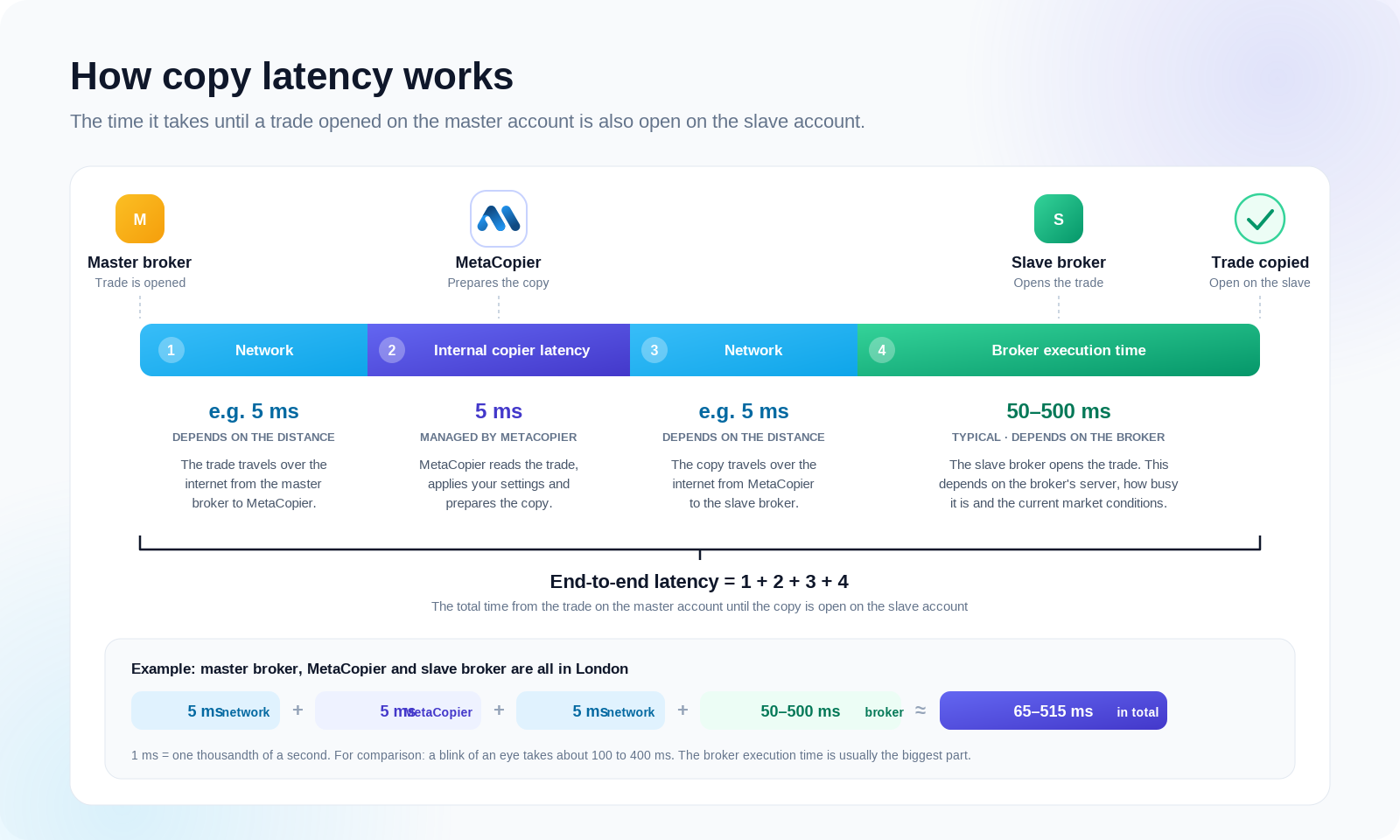
How copy latency works
A copied trade goes through four steps, and each step takes a little time:
- Network (master broker to MetaCopier): The trade travels over the internet from the master broker to MetaCopier. The farther apart they are, the longer it takes. This is why choosing the right region matters.
- Internal copier latency: MetaCopier reads the trade, applies your settings and prepares the copy. This takes 5 ms. With the HFT mode Pro feature, it can be lowered to 1 ms.
- Network (MetaCopier to slave broker): The copy travels over the internet from MetaCopier to the slave broker. Again, a shorter distance means a faster trip.
- Broker execution time: The slave broker receives the order and actually opens the trade. How long this takes depends on the broker: how fast its servers are, how busy they are and how the market is moving at that moment. It typically takes 50 to 500 ms, which makes it usually the biggest part of the total. MetaCopier has no control over this step.
All four steps together are called the end-to-end latency: the total time from the trade on the master account until the copy is open on the slave account.
Example: The master broker, MetaCopier and the slave broker are all in London.
- The trade needs about 5 ms to reach MetaCopier.
- MetaCopier needs 5 ms to prepare the copy.
- The copy needs about 5 ms to reach the slave broker.
- Then the slave broker needs its broker execution time to open the trade, typically 50 to 500 ms.
In total, that is about 65 to 515 ms. As you can see, most of the time is spent at the slave broker.
Regions
MetaCopier runs servers in four regions around the world: New York, London, Berlin and Singapore. When you add an account, you choose the region where it runs.
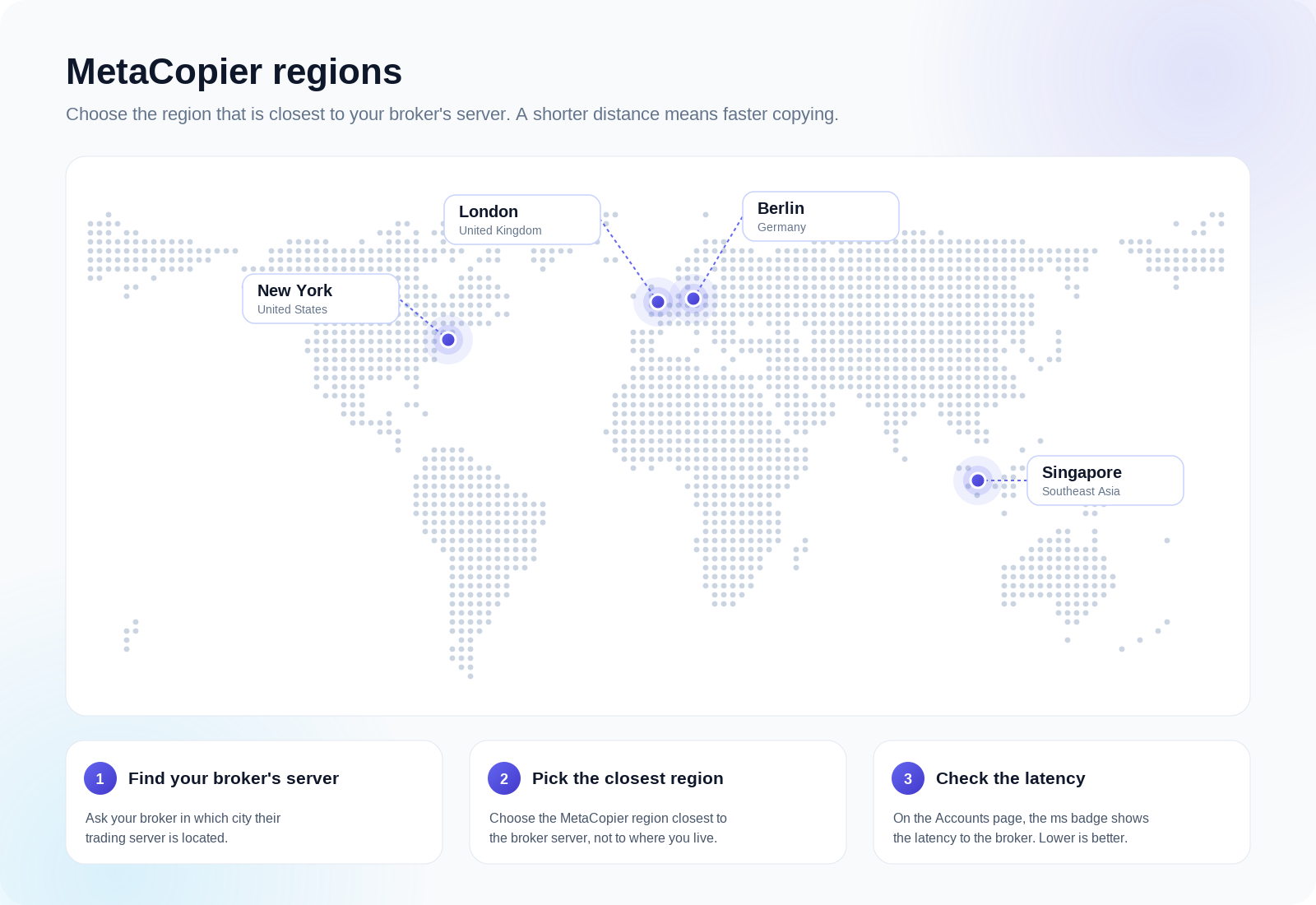
MetaCopier regions
Choose the region that is closest to your broker's server, not the region closest to where you live. Your trades travel between your broker and MetaCopier, so the shorter that distance, the lower the latency.
How do I find out where my broker's server is?
- Ask your broker. Their support can tell you in which city their trading servers are located. Then pick the MetaCopier region closest to that city.
- Check the latency on the Accounts page. Once your account is connected, MetaCopier shows the latency to the broker's server as a small badge (for example
2 ms) next to the account status. A low number means the region is close to your broker. If the number is high, the region is probably far away. In that case, add the account in another region and keep the region with the lowest number.
You cannot change the region of an account after it has been added. To move an account to another region, add it again in the new region. If there is an outage, MetaCopier can automatically move an account to another region for a while. You can control this with the fallback setting.
Master/slave compatibility
In the following table, you can see which accounts can be used as a master and/or a slave.
| Platform | Master | Slave |
|---|---|---|
| MetaTrader 4 | true | true |
| MetaTrader 5 | true | true |
| cTrader | true | true |
| DXtrade | true | true |
| TradeLocker | true | true |
| MatchTrader | true | true |
| Tradingview | true | false |
| Telegram | true | false |
| Binance | true | true |
| Bitget | true | true |
| BloFin | true | true |
| Bybit | true | true |
| OKX | true | true |
| TradeStation | true | true |
| Tradovate | true | true |
| Alpaca | true | true |
| Gate.io | true | true |
| Bitunix | true | true |
| Hyperliquid | true | true |
Tradingview and Telegram are not trading platforms themselves - they act as signal sources that feed orders into MetaCopier through the TradingView webhook or the Telegram signal integration. They can therefore be used as a master but never as a slave, since execution always happens on a real broker account.
Order types compatibility
Our trading platform supports various order types for copying trades. By default, limit orders are not copied, as we recommend this setting for most situations.
We advise against copying limit orders because it offers no significant advantages and may cause issues. For example, if a pending order activates on the follower's account but not on the master's account, it can lead to an unmanaged trade on the follower's account, posing risks and making it hard to manage.
On the following page, you can find all the details about pending orders.
📄Pending ordersOur trade copying platform is designed to provide seamless and efficient execution of trades across multiple accounts. By default, we do…Accounts can be set up as either master or follower for copying trades.
| Platform / Order types | Market | Limit | Stop-Limit | TP/SL |
|---|---|---|---|---|
| MetaTrader 4 | true | true | true | true |
| MetaTrader 5 | true | true | true | true |
| cTrader | true | true | true | true |
| DXtrade | true | false | false | true |
| TradeLocker | true | false | false | true |
| MatchTrader | true | false | false | true |
| Binance | true | false | false | true |
| Bitget | true | false | false | true |
| BloFin | true | false | false | true |
| Bybit | true | false | false | true |
| OKX | true | false | false | true |
| TradeStation | true | false | false | true |
| Tradovate | true | false | false | true |
| Alpaca | true | false | false | true |
| Gate.io | true | false | false | true |
| Bitunix | true | false | false | true |
| Hyperliquid | true | false | false | true |
Some prop firms require that Take Profit (TP) and Stop Loss (SL) values are included when the order is placed, rather than added in separate steps.
With MetaTrader 4/5, cTrader, and TradeLocker, TP and SL are included directly in the initial order.
With DXtrade, TP and SL are set through multiple requests.
Partial closes
Partial closes are supported on all platforms. This means you can close a portion of an open trade while keeping the remaining position active. For example, if you have a 1.0 lot trade open, you can choose to close 0.5 lots to secure partial profit, while the remaining 0.5 lots continue to run on the market.
This feature gives you more flexibility in managing risk and locking in profits without fully exiting your position. It can be especially useful for strategies that scale out gradually, or when you want to reduce exposure while still keeping some of the trade open in case the market continues in your favor.
Multiple masters on one slave
Some accounts hold only one aggregated position per symbol instead of a separate position per trade:
- MetaTrader netting accounts
- Binance, Bitget, BloFin, Bybit, OKX, Gate.io, Bitunix and Hyperliquid
- TradeStation, Tradovate and Alpaca
In one-way (netting) mode, these accounts hold one position per symbol. In hedge mode, they hold one position per symbol and direction (one long and one short).
If several copiers on the same slave trade the same symbol (in hedge mode: the same symbol in the same direction), their trades are merged into one shared position and interfere with each other (volume, stop loss and take profit), which can lead to unexpected results.
Only add multiple copiers to such a slave if each master trades different symbols. To combine several masters on the same symbol, use a slave that keeps a separate position per trade, such as a MetaTrader hedging account.
Soft limits
MetaCopier is designed to scale seamlessly, accommodating millions of accounts without hard restrictions. To maintain optimal performance and prevent misuse, we have established the following soft limits:
Customer limits
| Description | Limit |
|---|---|
| Projects | 30 |
Project limits
| Description | Limit |
|---|---|
| Accounts | 100 |
| Strategies | 100 |
| Dedicated IPs | 20 |
| Hosted expert advisors (EA hosting) | 25 |
Trial and funding-based account limits
Trial projects are limited to 10 accounts. More accounts unlock progressively as the project is funded. Here, funding means the project balance plus everything already paid in invoices; the $20 free trial credit does not count towards it.
| Total funding | Accounts unlocked |
|---|---|
| $0 | 10 |
| $160 | 20 |
| $240 | 30 |
| $320 | 40 |
| $400 | 50 |
| $480 | 60 |
| $560 | 70 |
| $640 | 80 |
| $720 | 90 |
| $800 | 100 |
These amounts are thresholds, not an extra charge. Funding accumulates on its own as your project pays its invoices, so you only need to top up the difference to reach the next tier. Once the project reaches $800 in total funding, the account limit is lifted permanently. The general soft limit of 100 accounts per project still applies above this.
Account limits
| Description | Limit |
|---|---|
| Copiers | 50 |
| Risk limits | 10 |
| Labels | 10 |
| Hosted expert advisors (EA hosting) | 5 |
If your requirements exceed these limits, please contact us to discuss adjustments.
Trade history limits
The amount of trade history available differs by platform:
- MetaTrader 4 and MetaTrader 5: 2 months.
- cTrader, TradeLocker, DXtrade and MatchTrader: up to 6 months.
Contract Sizes
MetaCopier does these calculations automatically, so there’s usually no need to configure anything. This explanation shows why you might see different lot sizes when trading the same instrument on different platforms. In most cases, the contract size will be the same.
When trading the same instrument on different platforms or broker accounts, you may notice variations in the lot size needed to achieve the same risk. This is often due to differences in contract size, which is the number of units of the underlying asset that each lot represents. A larger contract size means each lot covers more of the underlying asset and therefore requires a smaller lot size to maintain the same risk exposure.
Example
- Master account
- Metatrader 5
- Contract Size: 1 for US30
- Meaning: 1 lot = 1 unit of the underlying asset (for simplicity)
- Slave account
- TradeLocker
- Contract Size: 100 for US30
- Meaning: 1 lot = 100 units of the underlying asset
Because TradeLocker’s contract size is 100, it handles 100 times more of the US30 index per lot than Metatrader 5 does. This difference explains why, if you open 1 lot on Metatrader, you would need 0.01 lots on TradeLocker to risk the same amount.
MetaTrader
Investor Passwords
MetaCopier supports connecting MetaTrader accounts with the investor (read-only) password. Such an account can only be used as a master, because the investor password does not allow placing, modifying or closing trades. A slave account always requires the master (trader) password.
Investor password accounts are detected automatically. The account is flagged as read-only (isInvestorPassword) and any trading action on it will be rejected by the broker. If an account unexpectedly shows as read-only, update it with the master password in the account settings.
One Time Passwords
MetaTrader supports One-Time Passwords (OTP) as an additional layer of account security. However, this feature is currently not supported by MetaCopier. If OTP is enabled on your MetaTrader account, you will need to disable it in order to successfully connect your account to MetaCopier.
Netting Accounts
MetaTrader netting accounts are fully supported by MetaCopier. You can connect and use them just like hedging accounts, benefiting from all platform features and full support. Copying between different account types is also supported. You can copy from a netting account to a hedging account, or from a hedging account to a netting account.
Multiple masters into one netting account. A netting account holds only one position per symbol. If several copiers on the same netting slave trade the same symbol, their trades are merged into one shared position and interfere with each other (volume, stop loss and take profit), which can lead to unexpected results.
Only add multiple copiers to a netting slave if each master trades different symbols. To combine several masters on the same symbol, use a hedging account as the slave. See Multiple masters on one slave.
cTrader
Position-Linked Pending Orders (Scale-In)
cTrader allows users to attach pending orders (e.g. BuyLimit, SellLimit) directly to an existing open position. When these pending orders are triggered, they increase the volume of the existing position rather than creating a new separate position.
This feature is not supported by MetaCopier. Position-linked pending orders may cause unexpected behavior in the copier logic, such as excessive modify events or incorrect trade detection. If you use this feature on a master account, the linked pending orders will not be correctly replicated to follower accounts.
We recommend using standard (unlinked) pending orders or market orders instead.
Blocked APIs
Some prop firms restrict access to the FIX API and Open API to prevent automated trading, bots, and high-frequency strategies that may increase their financial risk or take advantage of their evaluation process. These restrictions are usually in place to encourage manual trading, reduce system load, and avoid potential misuse. If you encounter an error message in the logs such as "CHANNEL_IS_BLOCKED", it is likely related to this restriction. In that case, please contact your broker for more information or clarification.
DXtrade
Market Data (Quotes)
Market data (quotes/ask/bid) is disabled by default on DXtrade. You need to contact the broker where your account is hosted to request activation of market data access via the API. Without this, MetaCopier features that rely on real-time quotes (such as breakeven, deviation/slippage protection, and risk per trade lot sizing) will not work.
Blocked APIs
The following prop firms have blocked access to their DXtrade APIs, therefore it is not possible to add DXtrade accounts in Metacopier. If possible, we suggest to use another compatible platform.
| Prop firm | URL | |
|---|---|---|
| MyFundedFX | https://webtrader.myfundedfx.com/ | |
| FTMO | https://dxtrade.ftmo.com/ | |
| Eightcap (Prop) | https://prop.dx-eightcap.com/ | |
| Darwinex | https://dxtrade.darwinex.com/ |
TradeLocker
TradeLocker may take up to 2 minutes to load all symbol configurations and enable trading.
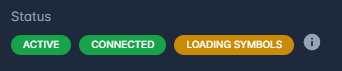
TradeLocker loading symbols
MatchTrader
MatchTrader is currently supported as a beta feature, as the platform does not officially support third-party integrations and provides only limited API access.
If you're unable to add your account, please consider contacting your broker to ask whether API access is permitted and if any relevant documentation is available.
If possible, we also recommend considering alternative platforms that offer more stable and reliable support.
Important: MatchTrader uses different lot size values compared to other platforms. Before trading, verify that a lot size of 0.05 (for example) corresponds to the expected value in your account currency.
MatchTrader currently does not provide the broker ID / Partner ID required to connect via the API (but they are working on it). You can request this information from your broker or try the following tip.
Open the MatchTrader WebUI in your browser, then inspect the source code of the WebUI. Depending on your browser, follow these steps (or search in Google if you are not sure):
In Google Chrome:
- Right-click anywhere on the page.
- Select "View Page Source" from the context menu, or use the keyboard shortcut Ctrl + U (Windows/Linux) or Cmd + Option + U (Mac).
In Mozilla Firefox:
- Right-click anywhere on the page.
- Select "View Page Source" from the context menu, or use the keyboard shortcut Ctrl + U (Windows/Linux) or Cmd + U (Mac).
In Internet Explorer:
- Right-click anywhere on the page.
- Select "View Source" from the context menu, or press Alt + Ctrl + U.
Within the source code, look for the term "brokerId". You should find something like this:
coIntegration: {
        managerUrl: '/manager',
        brokerId: '2',
        coUrl: ''
    },
In this case, the broker ID is 2. In the screenshot below, you can see a working configuration for a challenge at E8 Markets. Use it as a reference if needed.
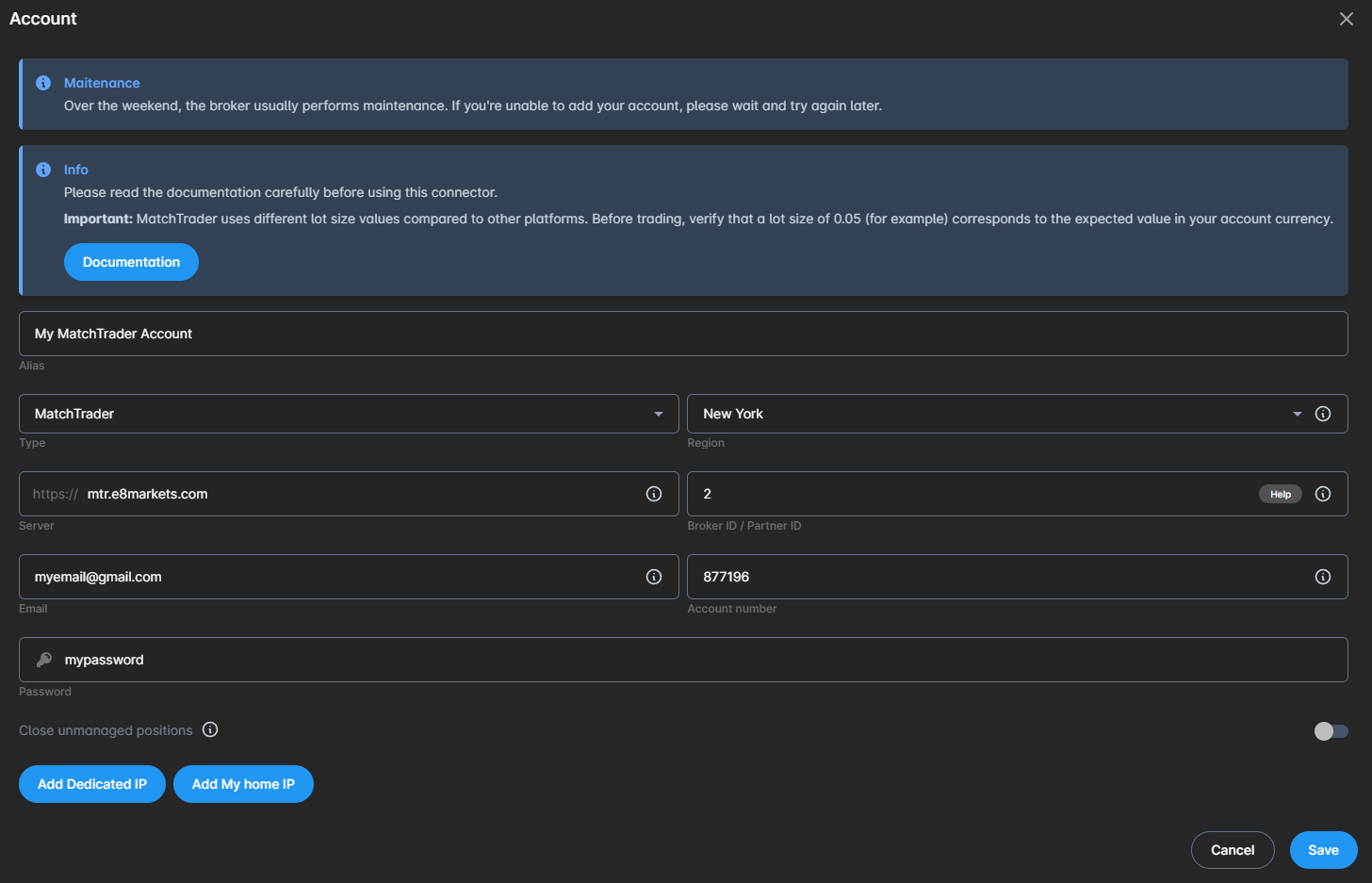
MatchTrader example configuration
Binance
Important information regarding Binance. Please read it carefully:
- Only USDT perpetuals are supported and tested.
- Only futures trading is supported; the spot market is not available.
- One Way and Hedge mode is supported
- Hedge mode is recommended
- Check if the master and slave are configured the same, such as One Way or Hedge mode, leverage, and so on.
- Binance does not support multiple positions for the same symbol, only a single aggregated position. If there are multiple positions on the master account, they will be merged into one. In this case, the ticket number of the oldest position on the master account will be used for tracking purposes.
- Since Binance only supports one aggregated position per symbol, MetaCopier adapts TP/SL management as follows:
- For Buy Positions:
- The highest Take Profit (TP) among all master positions is applied.
- The lowest Stop Loss (SL) among all master positions is applied.
- For Sell Positions:
- The lowest Take Profit (TP) among all master positions is applied.
- The highest Stop Loss (SL) among all master positions is applied.
- For Buy Positions:
- Price differences between a normal Broker and Binance
- There can be significant price differences between a normal broker and Binance (a direct market exchange). This is due to variations in liquidity, spreads, and pricing models used by brokers versus exchanges.
- To ensure accurate risk management, we highly recommend enabling the #tp-sl-management feature in MetaCopier and activating the "Adjust with master distance" option. This ensures that Take Profit (TP) and Stop Loss (SL) levels are adjusted dynamically based on the price difference between the master and slave accounts, improving trade execution reliability.
- Check the profit of the trades and adjust the multiplier to align the profit on the slave account, since Binance works differently compared to a traditional forex broker.
- When adding a copier to the Binance account, the option "Hide comment" must be activated. Manual trading or positions opened by other systems on the slave account are not recommended while this option is active, because a position can still be misclassified.
- For EU residential users, deployment from New York will not work, it will appear disconnected, as the New York region is restricted to U.S. residents. Please select a different region.
How to generate an API Key and Secret Key on Binance
For EU residential users, deployment from New York will not work, it will appear disconnected, as the New York region is restricted to U.S. residents. Please select a different region.
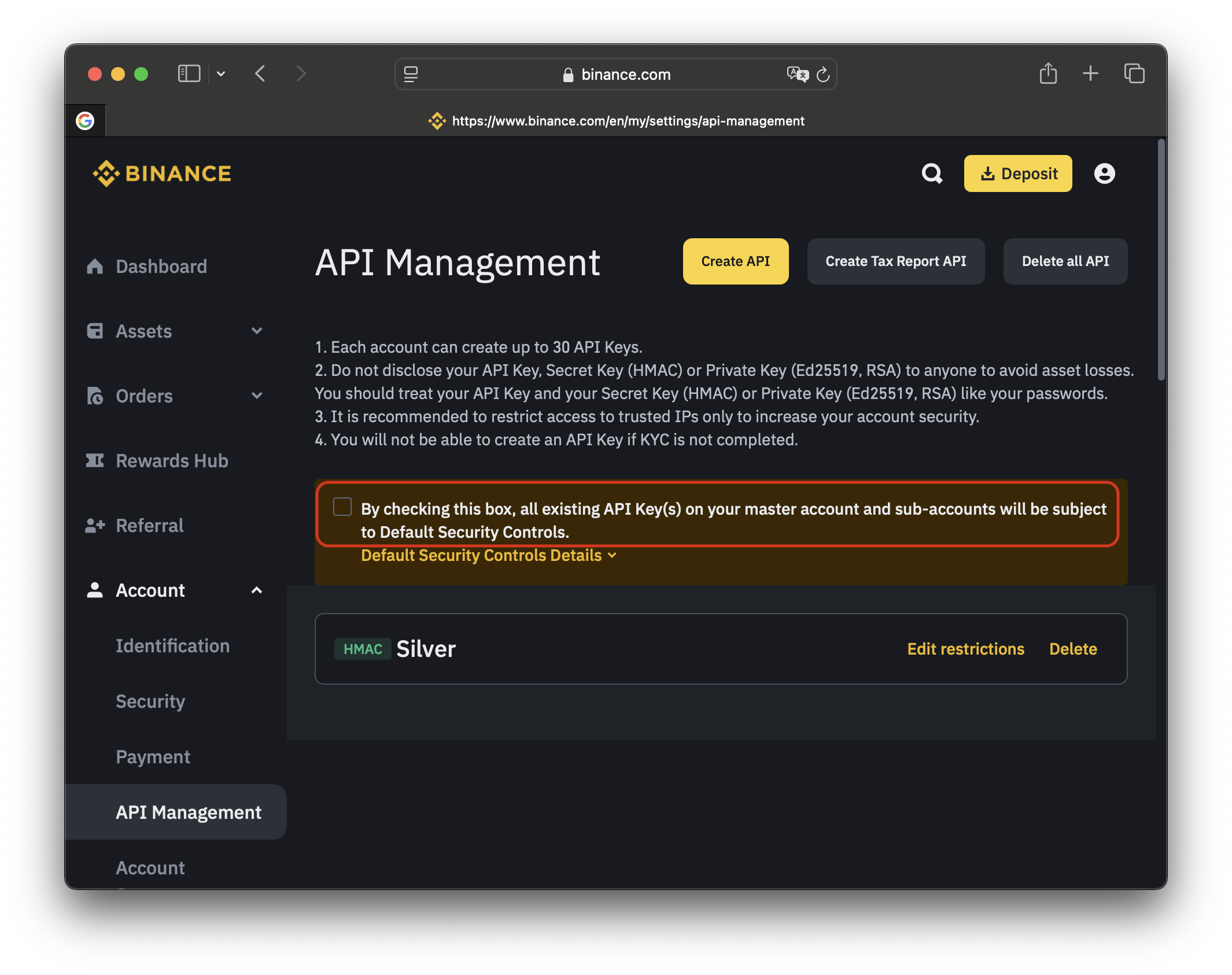
If the default security cannot be disabled, the API key must be restricted to a source IP. To do this, you have two options:
- Buy a dedicated proxy and attach it to an existing MT4, MT5, or similar account so the IP will be visible in the green "PROXY" label.
- If you do not have any accounts yet in your project, then the default security in Binance must be disabled so that you can deploy the Binance account with your dedicated IP. After deploying, the dedicated IP will be visible in the green "PROXY" label. You can then copy it and restrict the API key using this dedicated IP.
Please note that if a dedicated IP is used, there will be no redundancy in case of connection issues and the connection to the account could be lost. We recommend not using a dedicated IP with Binance.
To connect your Binance account to MetaCopier, you can generate your API keys using one of the following methods:
-
Automatic Key Generation (not recommended) – Use the button in our web app to generate your API Key and Secret Key automatically.
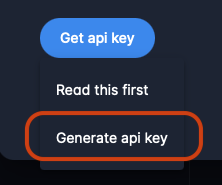
Important notice: You can only generate one API key, and you must deactivate the default security:
-
Manual Key Generation (recommended) – If you prefer, you can manually create and configure your API keys by following the steps below to ensure secure setup.
Step 1: Log in to Binance
- Go to the Binance website.
- Click Log In and enter your credentials (email and password).
- Complete the 2FA authentication (if enabled).
Step 2: Navigate to API Management
- Click on your profile icon (top-right corner).
- Select Account -> API Management from the dropdown menu.
Step 3: Create a new API Key
- Under API Key Management, click Create API.
- Choose System-generated API Key or Self-generated API Key.
- Enter a label/name for your API key (e.g., "MetaCopier").
- Click Next and complete the security verification (email/SMS/Google Authenticator).
Step 4: Configure API key permissions
- Copy and store your API Key and Secret Key securely.
- The Secret Key is shown only once-make sure to save it.
- Edit API restrictions:
- Enable "Enable Futures"
- Enable "Enable Spot & Margin Trading"
- Click Save to finalize the setup.
Step 5: Connect to MetaCopier
- Log in to MetaCopier.
- Create an binance account
- Enter the API key and Secret key in the password field using the format: apikey|secretkey
Security tips
- Do not share your Secret Key with anyone.
Bybit
Important information regarding Bybit. Please read it carefully:
- Only USDT perpetuals are supported and tested.
- Only futures trading is supported; the spot market is not available.
- Only Unified Trading is supported
- One Way and Hedge mode is supported
- Hedge mode is recommended
- Check if the master and slave are configured the same, such as One Way or Hedge mode, leverage, and so on.
- Bybit does not support multiple positions for the same symbol, only a single aggregated position. If there are multiple positions on the master account, they will be merged into one. In this case, the ticket number of the oldest position on the master account will be used for tracking purposes.
- Since Bybit only supports one aggregated position per symbol, MetaCopier adapts TP/SL management as follows:
- For Buy Positions:
- The highest Take Profit (TP) among all master positions is applied.
- The lowest Stop Loss (SL) among all master positions is applied.
- For Sell Positions:
- The lowest Take Profit (TP) among all master positions is applied.
- The highest Stop Loss (SL) among all master positions is applied.
- For Buy Positions:
- Price differences between a normal Broker and Bybit
- There can be significant price differences between a normal broker and Bybit (a direct market exchange). This is due to variations in liquidity, spreads, and pricing models used by brokers versus exchanges.
- To ensure accurate risk management, we highly recommend enabling the #tp-sl-management feature in MetaCopier and activating the "Adjust with master distance" option. This ensures that Take Profit (TP) and Stop Loss (SL) levels are adjusted dynamically based on the price difference between the master and slave accounts, improving trade execution reliability.
- Check the profit of the trades and adjust the multiplier to align the profit on the slave account, since Bybit works differently compared to a traditional forex broker.
- When adding a copier to the Bybit account, the option "Hide comment" must be activated. Manual trading or positions opened by other systems on the slave account are not recommended while this option is active, because a position can still be misclassified.
How to generate an API Key and Secret Key on Bybit
To connect your Bybit account to MetaCopier, you can generate your API keys by following these steps:
Step 1: Log in to Bybit
- Go to the Bybit website.
- Click Log In and enter your credentials (email and password).
- Complete any 2FA authentication if prompted.
Step 2: Navigate to API Management
- Click on your profile icon in the top-right corner.
- Select API from the dropdown menu.
- Or directly visit: https://www.bybit.com/app/user/api-management
Step 3: Create a New API Key
- Click Create New Key.
- Choose System-generated API Key
- Enter a label/name for your API key (e.g., "MetaCopier").
- Select API Trasaction.
- Select Read-Write
- Select No IP restriction
- Select "Unified Trading" (Trade) and Assets (Assets)
- Click Submit and complete the verification steps (email/SMS/2FA).
- API keys that are not bound to IP addresses are valid for three (3) months
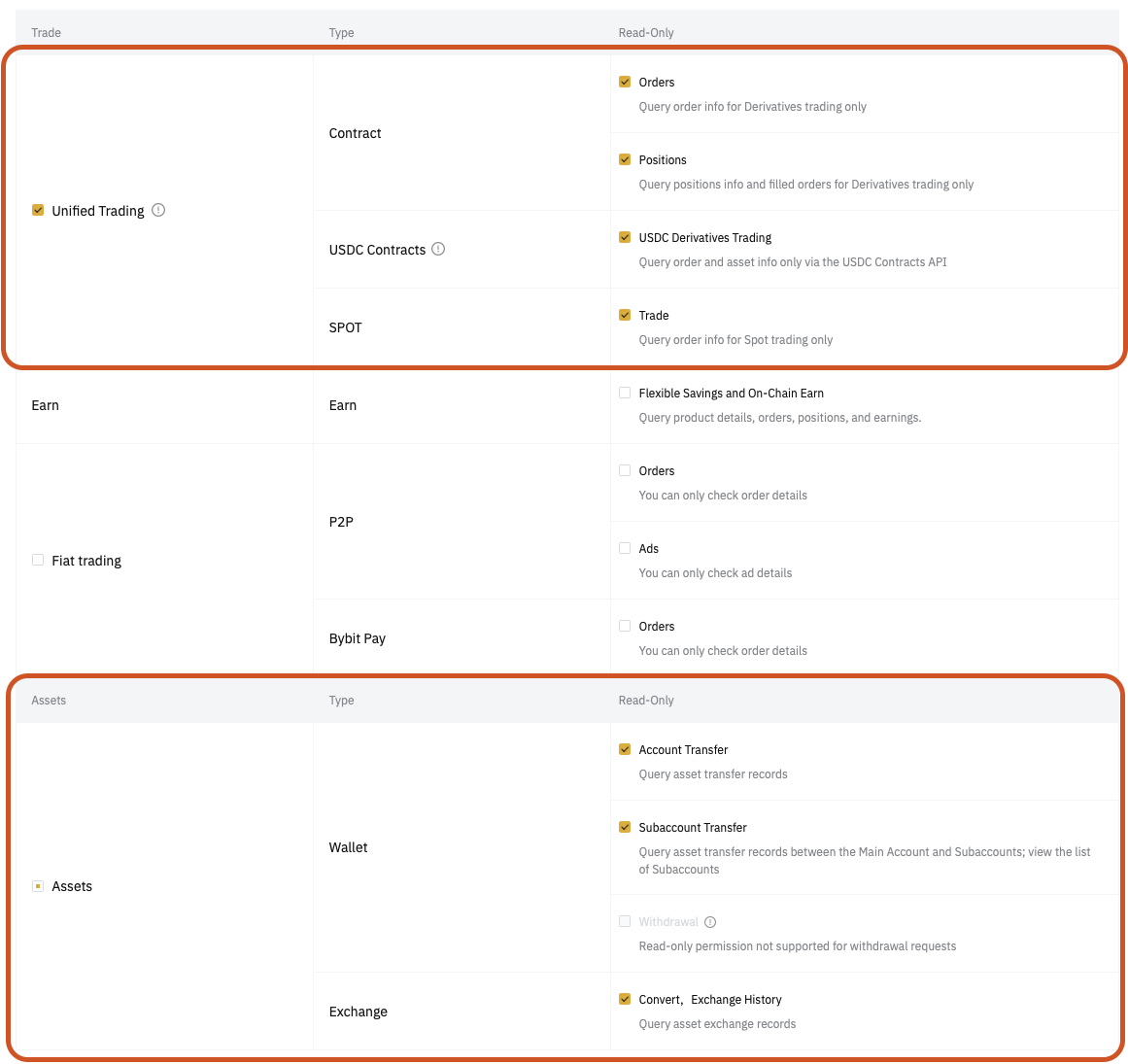
Step 4: Connect to MetaCopier
-
Log in to MetaCopier.
-
Create a Bybit account
-
Enter your API Key and Secret Key in the password field using the format:
apikey|secretkey -
If the account can not connect try using a different region
Security Tips
- Do not share your Secret Key with anyone.
Bitget
Bitget is currently supported as a beta feature.
Important information regarding Bitget. Please read it carefully:
- Only USDT perpetuals are supported and tested.
- Only futures trading is supported; the spot market is not available.
- One Way and Hedge mode is supported
- Hedge mode is recommended
- Check if the master and slave are configured the same, such as One Way or Hedge mode, leverage, and so on.
- Bitget does not support multiple positions for the same symbol, only a single aggregated position. If there are multiple positions on the master account, they will be merged into one. In this case, the ticket number of the oldest position on the master account will be used for tracking purposes.
- Since Bitget only supports one aggregated position per symbol, MetaCopier adapts TP/SL management as follows:
- For Buy Positions:
- The highest Take Profit (TP) among all master positions is applied.
- The lowest Stop Loss (SL) among all master positions is applied.
- For Sell Positions:
- The lowest Take Profit (TP) among all master positions is applied.
- The highest Stop Loss (SL) among all master positions is applied.
- For Buy Positions:
- Price differences between a normal Broker and Bitget
- There can be significant price differences between a normal broker and Bitget (a direct market exchange). This is due to variations in liquidity, spreads, and pricing models used by brokers versus exchanges.
- To ensure accurate risk management, we highly recommend enabling the #tp-sl-management feature in MetaCopier and activating the "Adjust with master distance" option. This ensures that Take Profit (TP) and Stop Loss (SL) levels are adjusted dynamically based on the price difference between the master and slave accounts, improving trade execution reliability.
- Check the profit of the trades and adjust the multiplier to align the profit on the slave account, since Bitget works differently compared to a traditional forex broker.
- When adding a copier to the Bitget account, the option "Hide comment" must be activated. Manual trading or positions opened by other systems on the slave account are not recommended while this option is active, because a position can still be misclassified.
How to generate an API Key and Secret Key on Bitget
To connect your Bitget account to MetaCopier, you can generate your API keys by following these steps:
Step 1: Log in to Bitget
- Go to the Bitget website.
- Click Log In and enter your credentials (email and password).
- Complete any 2FA authentication if prompted.
Step 2: Navigate to API Management
- Click on your profile icon in the top-right corner.
- Select API Management from the dropdown menu.
- Or directly visit: https://www.bitget.com/account/newapi
Step 3: Create a New API Key
- Click Create API Key.
- Choose System-generated API Key.
- Enter a label/name for your API key (e.g., "MetaCopier").
- Enter a passphrase (you will need this later).
- Under permissions, enable Trade and Read for Futures.
- Select No IP restriction (or bind to your dedicated IP if applicable).
- Click Submit and complete the verification steps.
Step 4: Connect to MetaCopier
-
Log in to MetaCopier.
-
Create a Bitget account.
-
Enter your API Key, Secret Key, and Passphrase in the password field using the format:
apikey|secretkey|passphrase -
If the account can not connect try using a different region.
Security Tips
- Do not share your Secret Key or Passphrase with anyone.
BloFin
BloFin is currently supported as a beta feature.
Important information regarding BloFin. Please read it carefully:
- Only USDT perpetuals are supported and tested.
- Only futures trading is supported; the spot market is not available.
- One Way and Hedge mode is supported
- Hedge mode is recommended
- Check if the master and slave are configured the same, such as One Way or Hedge mode, leverage, and so on.
- BloFin does not support multiple positions for the same symbol, only a single aggregated position. If there are multiple positions on the master account, they will be merged into one. In this case, the ticket number of the oldest position on the master account will be used for tracking purposes.
- Since BloFin only supports one aggregated position per symbol, MetaCopier adapts TP/SL management as follows:
- For Buy Positions:
- The highest Take Profit (TP) among all master positions is applied.
- The lowest Stop Loss (SL) among all master positions is applied.
- For Sell Positions:
- The lowest Take Profit (TP) among all master positions is applied.
- The highest Stop Loss (SL) among all master positions is applied.
- For Buy Positions:
- Price differences between a normal Broker and BloFin
- There can be significant price differences between a normal broker and BloFin (a direct market exchange). This is due to variations in liquidity, spreads, and pricing models used by brokers versus exchanges.
- To ensure accurate risk management, we highly recommend enabling the #tp-sl-management feature in MetaCopier and activating the "Adjust with master distance" option. This ensures that Take Profit (TP) and Stop Loss (SL) levels are adjusted dynamically based on the price difference between the master and slave accounts, improving trade execution reliability.
- Check the profit of the trades and adjust the multiplier to align the profit on the slave account, since BloFin works differently compared to a traditional forex broker.
- When adding a copier to the BloFin account, the option "Hide comment" must be activated. Manual trading or positions opened by other systems on the slave account are not recommended while this option is active, because a position can still be misclassified.
How to generate an API Key and Secret Key on BloFin
To connect your BloFin account to MetaCopier, you can generate your API keys by following these steps:
Step 1: Log in to BloFin
- Go to the BloFin website.
- Click Log In and enter your credentials (email and password).
- Complete any 2FA authentication if prompted.
Step 2: Navigate to API Management
- Click on your profile icon in the top-right corner.
- Select API from the dropdown menu.
- Or directly visit: https://blofin.com/account/apis
Step 3: Create a New API Key
- Click Create API.
- Enter a label/name for your API key (e.g., "MetaCopier").
- Enter a passphrase (you will need this later).
- Under permissions, enable Trade for Futures.
- Select No IP restriction (or bind to your dedicated IP if applicable).
- Click Submit and complete the verification steps.
Step 4: Connect to MetaCopier
-
Log in to MetaCopier.
-
Create a BloFin account.
-
Enter your API Key, Secret Key, and Passphrase in the password field using the format:
apikey|secretkey|passphrase -
If the account can not connect try using a different region.
Security Tips
- Do not share your Secret Key or Passphrase with anyone.
OKX
OKX is currently supported as a beta feature.
Important information regarding OKX. Please read it carefully:
- Only USDT perpetuals are supported and tested.
- Only futures trading is supported; the spot market is not available.
- The account must be in Trade mode (not Simple mode). Switch this in OKX settings under Trading → Account mode.
- One Way and Hedge mode is supported
- Hedge mode is recommended
- Check if the master and slave are configured the same, such as One Way or Hedge mode, leverage, and so on.
- OKX does not support multiple positions for the same symbol, only a single aggregated position. If there are multiple positions on the master account, they will be merged into one. In this case, the ticket number of the oldest position on the master account will be used for tracking purposes.
- Since OKX only supports one aggregated position per symbol, MetaCopier adapts TP/SL management as follows:
- For Buy Positions:
- The highest Take Profit (TP) among all master positions is applied.
- The lowest Stop Loss (SL) among all master positions is applied.
- For Sell Positions:
- The lowest Take Profit (TP) among all master positions is applied.
- The highest Stop Loss (SL) among all master positions is applied.
- For Buy Positions:
- Price differences between a normal Broker and OKX
- There can be significant price differences between a normal broker and OKX (a direct market exchange). This is due to variations in liquidity, spreads, and pricing models used by brokers versus exchanges.
- To ensure accurate risk management, we highly recommend enabling the #tp-sl-management feature in MetaCopier and activating the "Adjust with master distance" option. This ensures that Take Profit (TP) and Stop Loss (SL) levels are adjusted dynamically based on the price difference between the master and slave accounts, improving trade execution reliability.
- Check the profit of the trades and adjust the multiplier to align the profit on the slave account, since OKX works differently compared to a traditional forex broker.
- When adding a copier to the OKX account, the option "Hide comment" must be activated. Manual trading or positions opened by other systems on the slave account are not recommended while this option is active, because a position can still be misclassified.
How to generate an API Key and Secret Key on OKX
To connect your OKX account to MetaCopier, you can generate your API keys by following these steps:
Step 1: Log in to OKX
- Go to the OKX website.
- Click Log In and enter your credentials (email and password).
- Complete any 2FA authentication if prompted.
Step 2: Navigate to API Management
- Click on your profile icon in the top-right corner.
- Select API from the dropdown menu.
- Or directly visit: https://www.okx.com/account/my-api
Step 3: Create a New API Key
- Click Create API Key.
- Enter a label/name for your API key (e.g., "MetaCopier").
- Enter a passphrase (you will need this later).
- Under permissions, select Trade.
- Select No IP restriction (or bind to your dedicated IP if applicable).
- Click Submit and complete the verification steps.
Step 4: Connect to MetaCopier
-
Log in to MetaCopier.
-
Create an OKX account.
-
Enter your API Key, Secret Key, and Passphrase in the password field using the format:
apikey|secretkey|passphrase -
If the account can not connect try using a different region.
Security Tips
- Do not share your Secret Key or Passphrase with anyone.
TradeStation
TradeStation is currently supported as a beta feature.
Important information regarding TradeStation. Please read it carefully:
- Only equities and futures are supported and tested.
- TradeStation uses OAuth2 authentication. MetaCopier handles the client credentials - you only need to authorize your TradeStation account.
- Demo (paper trading) and Live environments are supported. The environment is detected automatically when you select your account, so there is no need to choose it manually.
- When adding a copier to the TradeStation account, the option "Hide comment" must be activated. Manual trading or positions opened by other systems on the slave account are not recommended while this option is active, because a position can still be misclassified.
- Professional market data subscribers: If your TradeStation account is configured as a professional market data subscriber, your refresh token may be set to expire with a 24-hour absolute lifetime. In that case you must re-authenticate manually every 24 hours to avoid interruptions. If this applies to you, please contact us so we can support you with the setup.
How to connect your TradeStation account
To connect your TradeStation account to MetaCopier:
Step 1: Create a TradeStation account in MetaCopier
- Log in to MetaCopier.
- Create a new TradeStation account.
Step 2: Authorize via OAuth
- Click the "Get token" button to start the OAuth flow.
- You will be redirected to TradeStation's login page in your web browser.
- Log in with your TradeStation credentials and authorize MetaCopier to access your account.
- After authorization, the refresh token will be set automatically.
- Select your account from the dropdown list. The environment (Demo or Live) is set automatically based on the selected account.
Security Tips
- MetaCopier only stores a refresh token - your TradeStation username and password are never stored.
NinjaTrader
NinjaTrader is powered by Tradovate's infrastructure. To connect a NinjaTrader account to MetaCopier, use the Tradovate connector with your Tradovate/NinjaTrader credentials. The setup steps and requirements are the same as described in the Tradovate section below.
Tradovate
Tradovate is currently supported as a beta feature.
Important information regarding Tradovate. Please read it carefully:
- Only futures trading is supported and tested.
- Tradovate accounts can be connected in two ways:
- API key (recommended): you enter your Tradovate username, password and a Tradovate API key. After a Tradovate outage or maintenance the account reconnects automatically.
- OAuth login: you log in on Tradovate's login page with the "Get token" button. If Tradovate is unavailable for longer than the token lifetime, you have to log in again (see Token Expiry and Reauthorization).
- Demo and Live environments are supported.
- When adding a copier to the Tradovate account, the option "Hide comment" must be activated. Manual trading or positions opened by other systems on the slave account are not recommended while this option is active, because a position can still be misclassified.
- API access is not always a paid add-on. Many brokers and prop firms running on Tradovate (or NinjaTrader) enable API access automatically and free of charge for their clients. Always try to connect first. Only if the connection fails with an API access error do you need to purchase the "API Access" add-on from your Tradovate account settings.
- Market data (quotes/ask/bid) is disabled by default. Tradovate requires you to contact their support to activate market data access for your API account. Whether you need it depends on how the Tradovate account is used:
- Tradovate as master: market data is not required. Positions, entry prices, stop loss and take profit are read without quotes, and features such as risk per trade lot sizing use the prices of the slave account. Only the displayed per-position profit is approximated (see Profit Calculation).
- Tradovate as slave: without market data, features that rely on real-time quotes of the Tradovate account (such as breakeven, deviation/slippage protection, and risk per trade lot sizing) will not work.
- With OAuth login, reauthorization may be required after a Tradovate outage or maintenance. With an API key this is not needed. See Token Expiry and Reauthorization below.
How to connect your Tradovate account
When you create a Tradovate account in MetaCopier, choose between API key and OAuth login. We recommend the API key, because the account reconnects automatically after a Tradovate outage or maintenance window. Use OAuth login if you cannot create an API key, for example on most prop firm accounts.
Option 1: API key (recommended)
Step 1: Create an API key in Tradovate
- Log in to Tradovate.
- Open Application Settings → API Access and generate a new API key.
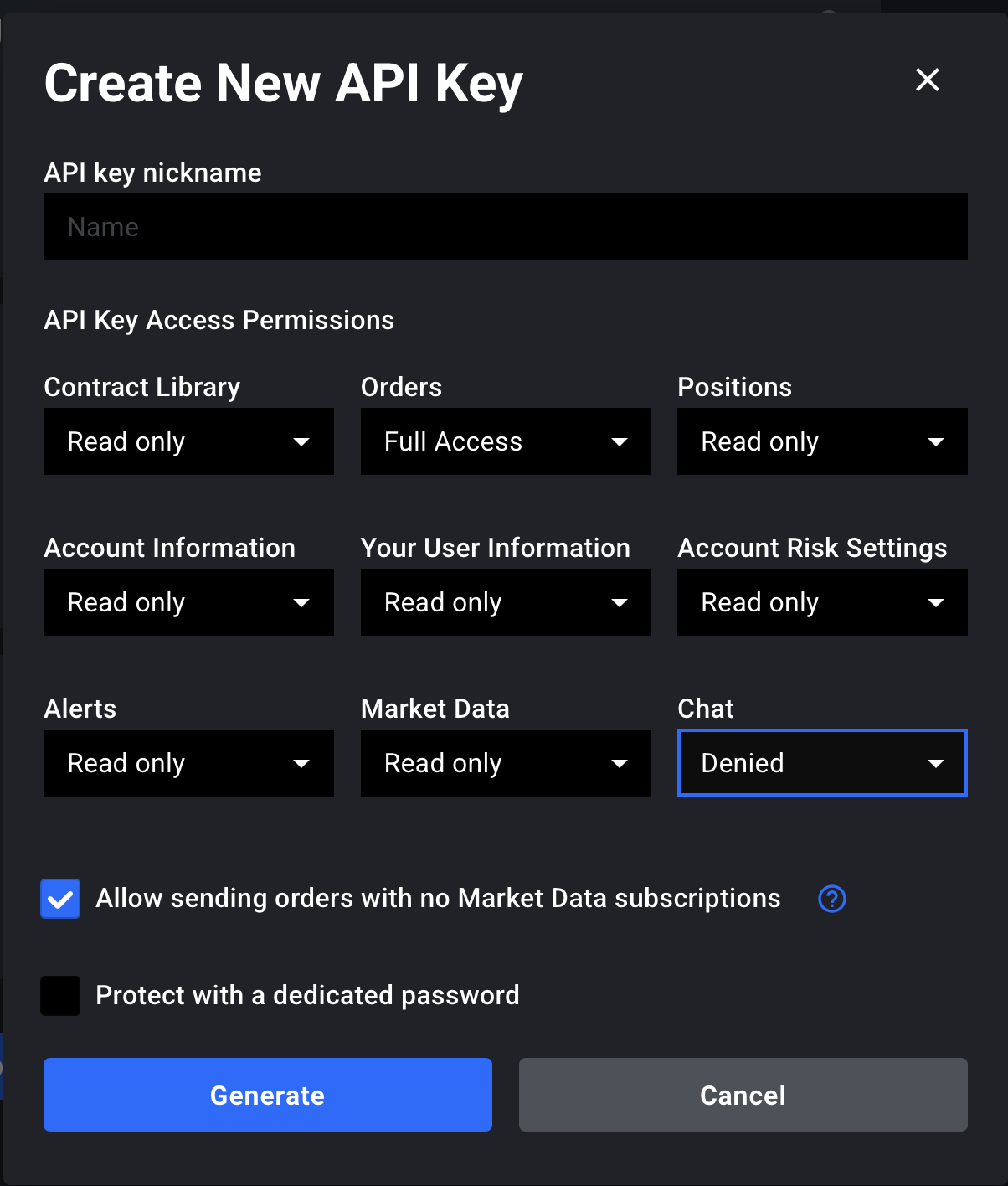
- Copy the API key ID (cid) and the API secret (sec). The secret is shown only once.
- Creating API keys requires the Tradovate "API Access" add-on. It is usually not available for prop firm accounts; in that case use the OAuth login.
Step 2: Add the account in MetaCopier
- Log in to MetaCopier and create a new Tradovate account.
- Select API key.
- Enter your Tradovate username, password, API key ID (cid) and API secret (sec).
- Click Load accounts and select your account from the list. Demo and live accounts of the user are listed together; the environment is set automatically.
- Save the account.
Tradovate allows only 2 sessions per user. Use a dedicated Tradovate user for MetaCopier and do not log in with it anywhere else, otherwise the sessions disconnect each other.
If Tradovate rejects the login, check the username, password, API key ID and API secret. After several failed logins Tradovate blocks further logins for a while. MetaCopier then waits and retries automatically after about 20 minutes.
Option 2: OAuth login
On white-label platforms, the OAuth login is only available if the white-label provider has configured its own Tradovate OAuth credentials. Otherwise, only the API key login is shown.
Step 1: Create a Tradovate account in MetaCopier
- Log in to MetaCopier.
- Create a new Tradovate account and select OAuth login.
- Select Demo or Live as the server environment.
Step 2: Authorize via OAuth
- Click the "Get token" button to start the OAuth flow.
- You will be redirected to Tradovate's login page in your web browser.
- Log in with your Tradovate credentials and authorize MetaCopier to access your account.
- After authorization, the access token will be set automatically.
- Select your account from the dropdown list.
Step 3: Only if the connection fails - enable API Access
If the authorization or the account list fails with an API access / permission error, your account does not have API access yet:
- Log in to your Tradovate account.
- Open your account settings and subscribe to the "API Access" add-on.
- If you trade with a broker or prop firm built on Tradovate or NinjaTrader, contact their support first - many of them enable API access for free, so the paid add-on is not needed.
- Once API access is active, repeat Step 2.
Security Tips
- OAuth login: MetaCopier only stores an access token - your Tradovate username and password are never stored.
- API key: MetaCopier stores your username, password and API key encrypted, so it can log in again by itself. Use a dedicated Tradovate user and change the password or revoke the API key in Tradovate if you no longer use MetaCopier.
Token Expiry and Reauthorization
Tradovate access tokens are valid for 90 minutes. MetaCopier renews the token automatically in the background before it expires, so under normal conditions no action is required from you.
However, Tradovate only allows a token to be renewed while it is still valid. If the Tradovate API is unavailable for longer than the remaining token lifetime (for example, during a scheduled Tradovate maintenance window or an extended outage), the renewal cannot succeed and the token expires.
How MetaCopier recovers depends on how the account is connected:
- API key: MetaCopier logs in again with your stored credentials as soon as Tradovate is available again. No action is required.
- OAuth login: Tradovate does not provide a refresh token, a longer token lifetime, or a grace period for expired tokens. We contacted the Tradovate API team about this, and their official answer is that once the token has expired, the user must repeat the OAuth authorization flow to reconnect. MetaCopier sends an email to the users of the project when an OAuth token has expired (at most once per day per account).
To avoid manual reauthorization, switch the account to an API key: open the account settings, select API key, enter your credentials and save.
What to do if your OAuth-connected Tradovate account is disconnected:
- In MetaCopier, click the gear icon of your Tradovate account and select "Settings".
- Click the "Get token" button and log in to Tradovate again to authorize MetaCopier.
- Save the account. The connection and copying resume automatically.
While the OAuth token is expired, MetaCopier cannot access your Tradovate account and no trades are copied to or from it. After a known Tradovate maintenance window or outage, check your OAuth-connected Tradovate accounts in MetaCopier and reauthorize them if needed.
Profit Calculation
Tradovate's API does not provide per-position unrealized P&L (profit). The position endpoint only returns entry price, quantity, and direction - but no current market value or profit field.
To display profit for open positions, MetaCopier uses two strategies depending on market data availability:
- With market data enabled: If real-time quotes (WebSocket market data) are activated on your Tradovate account, MetaCopier calculates per-position profit precisely using live bid/ask prices.
- Without market data (default): When market data is not activated, MetaCopier uses the account-level
openPnLvalue from Tradovate's cash balance snapshot, which is refreshed every 30 seconds. If you have a single open position, the fullopenPnLis assigned to that position. If you have multiple positions in different contracts, theopenPnLis distributed proportionally by lot size.
The profit displayed without market data is an approximation based on account-level data. For precise per-position profit, activate market data access by contacting Tradovate support.
Stop Loss and Take Profit
Tradovate positions have no stop loss or take profit field. Protection is placed as separate working orders (brackets) on the same contract. MetaCopier derives the stop loss and take profit of a position from these working orders:
- Stop loss: a working stop, stop-limit or trailing stop order on the exit side of the position.
- Take profit: a working limit order on the exit side of the position.
This works for brackets placed by MetaCopier as well as for brackets placed outside MetaCopier, for example from TradingView, the Tradovate or NinjaTrader platform, or an ATM strategy. When you move a bracket order, the new price is picked up with the next update. Brackets placed outside MetaCopier are only detected on a master account. On a slave account MetaCopier only tracks the brackets it placed itself.
Tradovate master positions are refreshed every few seconds. If your slave uses 'Correct lot size based on SL' and the stop loss is attached right after the entry, set 'Wait for master SL (seconds)' to at least 10 so the copier does not give up before the stop loss is detected. See Risk per trade.
Alpaca
Alpaca is currently supported as a beta feature.
Important information regarding Alpaca. Please read it carefully:
- Only US equities and crypto are supported and tested.
- Paper (paper trading) and Live environments are supported.
- When adding a copier to the Alpaca account, the option "Hide comment" must be activated. Manual trading or positions opened by other systems on the slave account are not recommended while this option is active, because a position can still be misclassified.
- Lot size and points: On Alpaca, 1 lot = 1 share (or 1 coin for crypto). Alpaca does not report a point size, so MetaCopier derives it from the asset's price increment: 1 point = 0.01 for US equities, and for crypto it follows the decimal places of the asset's price increment (e.g. 1 for BTC/USD, whose price increment is 1). All settings expressed in points (TP/SL management, trailing stop, spread filter, risk per trade, etc.) use this value.
- Risk per trade: For US equities the tick value is 0.01 USD per point and lot (1 share × 0.01). Enter it manually or let MetaCopier detect it automatically, see Risk per trade: Tick value.
How to generate an API Key and Secret Key on Alpaca
To connect your Alpaca account to MetaCopier, you can generate your API keys by following these steps:
Step 1: Log in to Alpaca
- Go to the Alpaca website.
- Click Log In and enter your credentials.
Step 2: Navigate to API Keys
- In your dashboard, navigate to the API Keys section.
- Or directly visit: https://app.alpaca.markets/paper/dashboard/overview
Step 3: Generate API Keys
- Click Generate New Keys (or Regenerate if keys already exist).
- Note your API Key ID and Secret Key.
- The Secret Key is shown only once - make sure to save it.
Step 4: Connect to MetaCopier
-
Log in to MetaCopier.
-
Create an Alpaca account.
-
Select Paper or Live as the server environment.
-
Enter your API Key and Secret Key in the password field using the format:
apikey|secretkey
Security Tips
- Do not share your Secret Key with anyone.
Gate.io
Gate.io is currently supported as a beta feature.
Important information regarding Gate.io. Please read it carefully:
- Only USDT perpetuals are supported and tested.
- Only futures trading is supported; the spot market is not available.
- One Way and Hedge mode is supported
- Hedge mode is recommended
- Check if the master and slave are configured the same, such as One Way or Hedge mode, leverage, and so on.
- Testnet and Live environments are supported.
- Gate.io does not support multiple positions for the same symbol, only a single aggregated position. If there are multiple positions on the master account, they will be merged into one. In this case, the ticket number of the oldest position on the master account will be used for tracking purposes.
- Since Gate.io only supports one aggregated position per symbol, MetaCopier adapts TP/SL management as follows:
- For Buy Positions:
- The highest Take Profit (TP) among all master positions is applied.
- The lowest Stop Loss (SL) among all master positions is applied.
- For Sell Positions:
- The lowest Take Profit (TP) among all master positions is applied.
- The highest Stop Loss (SL) among all master positions is applied.
- For Buy Positions:
- Price differences between a normal Broker and Gate.io
- There can be significant price differences between a normal broker and Gate.io (a direct market exchange). This is due to variations in liquidity, spreads, and pricing models used by brokers versus exchanges.
- To ensure accurate risk management, we highly recommend enabling the #tp-sl-management feature in MetaCopier and activating the "Adjust with master distance" option. This ensures that Take Profit (TP) and Stop Loss (SL) levels are adjusted dynamically based on the price difference between the master and slave accounts, improving trade execution reliability.
- Check the profit of the trades and adjust the multiplier to align the profit on the slave account, since Gate.io works differently compared to a traditional forex broker.
- When adding a copier to the Gate.io account, the option "Hide comment" must be activated. Manual trading or positions opened by other systems on the slave account are not recommended while this option is active, because a position can still be misclassified.
How to generate an API Key and Secret Key on Gate.io
To connect your Gate.io account to MetaCopier, you can generate your API keys by following these steps:
Step 1: Log in to Gate.io
- Go to the Gate.io website.
- Click Log In and enter your credentials (email and password).
- Complete any 2FA authentication if prompted.
Step 2: Navigate to API Management
- Click on your profile icon in the top-right corner.
- Select API Management from the dropdown menu.
- Or directly visit: https://www.gate.io/myaccount/api_key_manage
Step 3: Create a New API Key
- Click Create API Key.
- Enter a label/name for your API key (e.g., "MetaCopier").
- Under permissions, enable Futures Trade and Futures Read.
- Select No IP restriction (or bind to your dedicated IP if applicable).
- Click Submit and complete the verification steps.
Step 4: Connect to MetaCopier
-
Log in to MetaCopier.
-
Create a Gate.io account.
-
Select Testnet or Live as the server environment.
-
Enter your API Key and Secret Key in the password field using the format:
apikey|secretkey -
If the account can not connect try using a different region.
Security Tips
- Do not share your Secret Key with anyone.
Bitunix
Bitunix is currently supported as a beta feature.
Important information regarding Bitunix. Please read it carefully:
- Only USDT perpetuals are supported and tested.
- Only futures trading is supported; the spot market is not available.
- One Way and Hedge mode is supported
- Hedge mode is recommended
- Check if the master and slave are configured the same, such as One Way or Hedge mode, leverage, and so on.
- Only the Live environment is supported (no testnet available).
- Bitunix does not support multiple positions for the same symbol, only a single aggregated position. If there are multiple positions on the master account, they will be merged into one. In this case, the ticket number of the oldest position on the master account will be used for tracking purposes.
- Since Bitunix only supports one aggregated position per symbol, MetaCopier adapts TP/SL management as follows:
- For Buy Positions:
- The highest Take Profit (TP) among all master positions is applied.
- The lowest Stop Loss (SL) among all master positions is applied.
- For Sell Positions:
- The lowest Take Profit (TP) among all master positions is applied.
- The highest Stop Loss (SL) among all master positions is applied.
- For Buy Positions:
- Price differences between a normal Broker and Bitunix
- There can be significant price differences between a normal broker and Bitunix (a direct market exchange). This is due to variations in liquidity, spreads, and pricing models used by brokers versus exchanges.
- To ensure accurate risk management, we highly recommend enabling the #tp-sl-management feature in MetaCopier and activating the "Adjust with master distance" option. This ensures that Take Profit (TP) and Stop Loss (SL) levels are adjusted dynamically based on the price difference between the master and slave accounts, improving trade execution reliability.
- Check the profit of the trades and adjust the multiplier to align the profit on the slave account, since Bitunix works differently compared to a traditional forex broker.
- When adding a copier to the Bitunix account, the option "Hide comment" must be activated. Manual trading or positions opened by other systems on the slave account are not recommended while this option is active, because a position can still be misclassified.
How to generate an API Key and Secret Key on Bitunix
To connect your Bitunix account to MetaCopier, you can generate your API keys by following these steps:
Step 1: Log in to Bitunix
- Go to the Bitunix website.
- Click Log In and enter your credentials (email and password).
- Complete any 2FA authentication if prompted.
Step 2: Navigate to API Management
- Click on your profile icon in the top-right corner.
- Select API Management from the dropdown menu.
Step 3: Create a New API Key
- Click Create API Key.
- Enter a label/name for your API key (e.g., "MetaCopier").
- Under permissions, enable Futures Trade.
- Select No IP restriction (or bind to your dedicated IP if applicable).
- Click Submit and complete the verification steps.
Step 4: Connect to MetaCopier
-
Log in to MetaCopier.
-
Create a Bitunix account.
-
Select Live as the server environment.
-
Enter your API Key and Secret Key in the password field using the format:
apikey|secretkey -
If the account can not connect try using a different region.
Security Tips
- Do not share your Secret Key with anyone.
Hyperliquid
Hyperliquid is currently supported as a beta feature.
Important information regarding Hyperliquid. Please read it carefully:
- Only USDC perpetuals are supported and tested.
- Only perpetual futures trading is supported; the spot market is not available.
- Hedge mode is recommended
- Testnet and Live environments are supported.
- Hyperliquid does not support multiple positions for the same symbol, only a single aggregated position. If there are multiple positions on the master account, they will be merged into one. In this case, the ticket number of the oldest position on the master account will be used for tracking purposes.
- Since Hyperliquid only supports one aggregated position per symbol, MetaCopier adapts TP/SL management as follows:
- For Buy Positions:
- The highest Take Profit (TP) among all master positions is applied.
- The lowest Stop Loss (SL) among all master positions is applied.
- For Sell Positions:
- The lowest Take Profit (TP) among all master positions is applied.
- The highest Stop Loss (SL) among all master positions is applied.
- For Buy Positions:
- Price differences between a normal Broker and Hyperliquid
- There can be significant price differences between a normal broker and Hyperliquid (a direct market exchange). This is due to variations in liquidity, spreads, and pricing models used by brokers versus exchanges.
- To ensure accurate risk management, we highly recommend enabling the #tp-sl-management feature in MetaCopier and activating the "Adjust with master distance" option. This ensures that Take Profit (TP) and Stop Loss (SL) levels are adjusted dynamically based on the price difference between the master and slave accounts, improving trade execution reliability.
- Check the profit of the trades and adjust the multiplier to align the profit on the slave account, since Hyperliquid works differently compared to a traditional forex broker.
- When adding a copier to the Hyperliquid account, the option "Hide comment" must be activated. Manual trading or positions opened by other systems on the slave account are not recommended while this option is active, because a position can still be misclassified.
How to connect your Hyperliquid account
To connect your Hyperliquid account to MetaCopier, you need to generate an API wallet:
Step 1: Log in to Hyperliquid
- Go to the Hyperliquid website.
- Connect your wallet (MetaMask or other supported wallets).
Step 2: Generate an API Wallet
- Navigate to Settings → API Wallets.
- Click Generate API Wallet.
- Set the desired permissions (ensure trading is enabled).
- Note your API Wallet Private Key - this is shown only once.
Step 3: Connect to MetaCopier
- Log in to MetaCopier.
- Create a Hyperliquid account.
- Select Testnet or Live as the server environment.
- Enter your credentials in the following fields:
- Private Key (required): Your API wallet private key.
- Wallet Address (optional): The wallet address you want to trade on behalf of. If left empty, it will be derived from the private key automatically.
- Vault Address (optional): The address of a vault or sub-account to trade through. Only needed if you want to trade on behalf of a vault.
The supported formats are:
privateKey
privateKey|walletAddress
privateKey|walletAddress|vaultAddress
Vault and sub-account trading: Vaults and sub-accounts do not have their own private keys. To trade on behalf of a vault or sub-account, sign with the master account's API wallet and provide the vault/sub-account address in the Vault Address field. The Wallet Address must also be provided when using a vault.
Security Tips
- Do not share your API Wallet Private Key with anyone.
- Consider setting up a sub-account for API trading to limit risk exposure.
Custom comment
Copy original comment
With MetaCopier, it is possible to replicate the original trade comment or set a custom comment to slave accounts. However, we strongly recommend not enabling this option unless it is truly necessary.
Only activate it if you specifically need the original comment to appear on the slave side. As an alternative, we suggest using Magic Numbers to identify which Expert Advisor (EA) opened each position. This approach is cleaner and generally more reliable.
MetaCopier uses a different method than most other solutions for tracking open positions. Instead of relying entirely on a centralized system, it stores tracking information directly in the broker’s comment field. This ensures a higher level of reliability and fault tolerance.
Because the tracking data is embedded locally, MetaCopier remains stable and accurate even during database failures, network interruptions, or system crashes. This design helps prevent common problems such as orphan trades, where positions are left open unintentionally, or duplicate trades.
These issues are well known in many competing systems, but thanks to MetaCopier’s architecture, they are effectively avoided, offering a more secure and dependable trade copying experience.