🏠 Dashboard
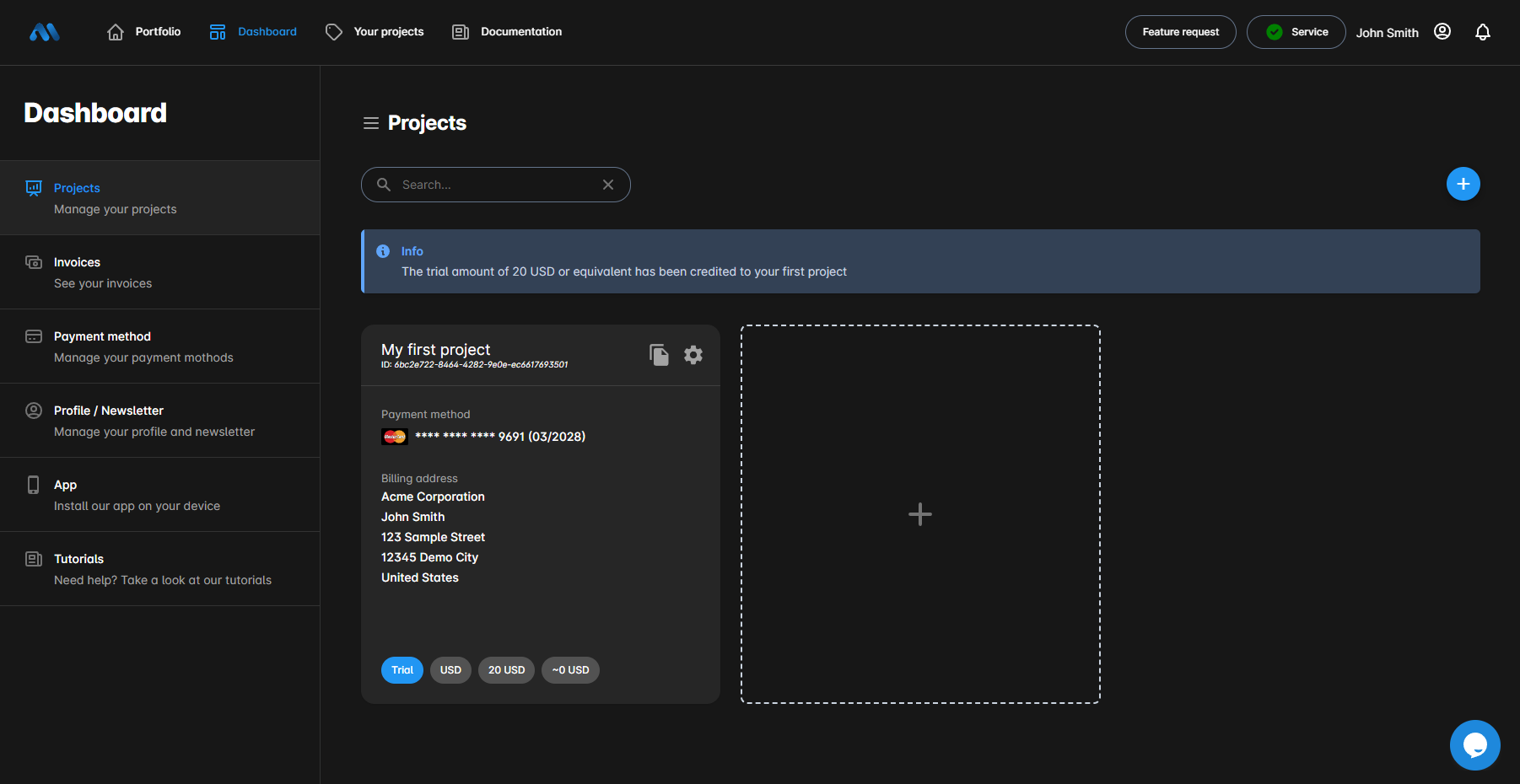
The MetaCopier dashboard provides you with a centralized platform to manage your projects, billing, payment methods, and account profile.
MetaCopier Dashboard
Navigation menu
On the left-hand side of the dashboard, you'll find the main navigation menu, which helps you manage different aspects of your MetaCopier account:
- Projects: View and manage all your active projects. Each project includes details like payment method, billing address, and currency breakdown.
- Invoices: Access and download your invoices related to project subscriptions or payments.
- Payment Method: Add or update your credit cards or other payment options. Each project can have its own linked payment method.
- Profile / Newsletter: Edit your personal details, such as your email and name, and manage your newsletter preferences.
- App: Install MetaCopier on your device by following the link to the appropriate app version.
- Tutorials: Learn how to get the most out of MetaCopier with step-by-step guides and detailed instructions.
Project overview
The main dashboard area shows your projects as individual cards. Each card summarizes the most important information for quick reference and management.
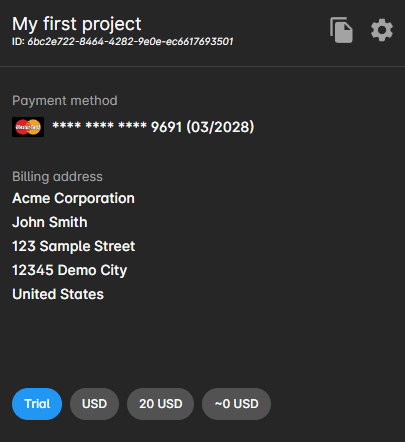
- Project Name & ID: You’ll see the name and a unique ID for each project, which can be useful when reaching out to support.
- Payment Method: You can assign a specific payment method to each project. If no method is set, you’ll see a red "none" label. Otherwise, the card shows the masked card number and expiration date.
- Billing Address: Each project includes the billing name and address you entered when setting it up.
- Currency Tags: These tags show:
- The primary currency (e.g., USD, EUR, CHF)
- Your current balance
- The monthly cost forecast
- Additional project type indicators like “Dedicated”
- Action Icons
- Open: Opens the selected project’s workspace, where you can see all the accounts
- Fund: Opens a submenu that allows you to choose how to fund the project (e.g., via card or crypto).
- Fund via bank: Provides instructions and banking details for funding the project using a manual bank transfer.
- Settings: Opens the project settings panel. You can update the project name, currency, payment method, and other related configurations.
- Permissions: Lets you manage user access to the project, such as assigning read-only or full-access rights. See Project permissions.
- Delete: Deletes the project from your dashboard. This is a permanent action and should be used with caution.
Adding New Projects
A floating blue plus button in the upper-right corner allows you to create new projects. You’ll be guided through setting the project name, selecting a payment method, and entering billing details.
Project permissions
You can share a project with other users (for example, team members, partners or your accountant) without sharing your login. Each user gets their own access level, which you can change or revoke at any time.
Permission types
| Permission | Description |
|---|---|
| Owner | The user who created the project. The owner always has full access and cannot be changed or removed. |
| Read & Write | Full access to view and modify the project (accounts, copiers, strategies, settings, etc.). |
| Read Only | Can view the project, but cannot modify anything. Useful for investors, auditors or support staff. |
Add a user to a project
- On the dashboard, open the menu of the project card and click Permissions.
- Click the blue + button in the upper-right corner of the Permissions dialog.
- In the Add a user dialog, enter the e-mail address the user uses to log in to MetaCopier.
- Select the Permission Type: Read & Write (default) or Read Only.
- Click Add.
The user now appears in the permissions list and can access the project from their own dashboard.
Each e-mail address can only be added once per project. To change the access level of an existing user, update the permission in the list instead of adding the user again.
Change or remove a permission
The Permissions dialog lists all users with access to the project, including the owner. You can search the list by e-mail address.
- Change the access level: Select Read & Write or Read Only in the Permission column. The change is applied immediately.
- Remove access: Click the trash icon in the Actions column and confirm with Remove. The user immediately loses access to the project.
The project owner cannot be removed and their permission cannot be changed.
Project dashboard
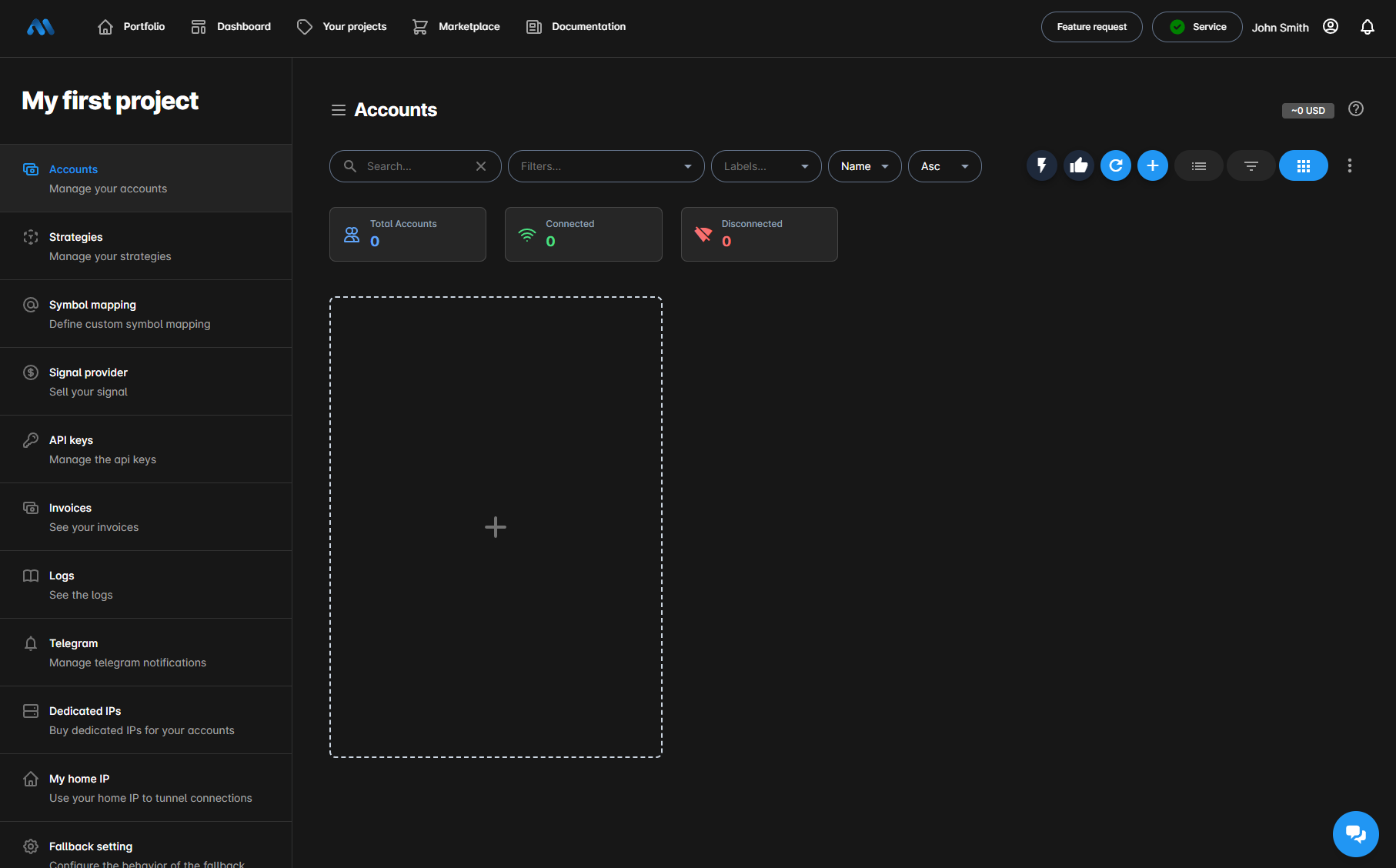
The Project Dashboard is the central workspace where you manage all trading accounts of an individual MetaCopier project, allowing you to configure accounts, copiers, strategies, signal settings, API access, notifications, and more.
All features available in this dashboard are explained in detail in the following sections of the documentation:
- Basic Features Documentation: covers fundamental modules such as accounts, strategies, and dedicated IPs.
- Pro Features Documentation: includes advanced capabilities
Use this dashboard to set up and operate your automation workflows according to your personal or institutional needs.
Project dashboard
Add a new account
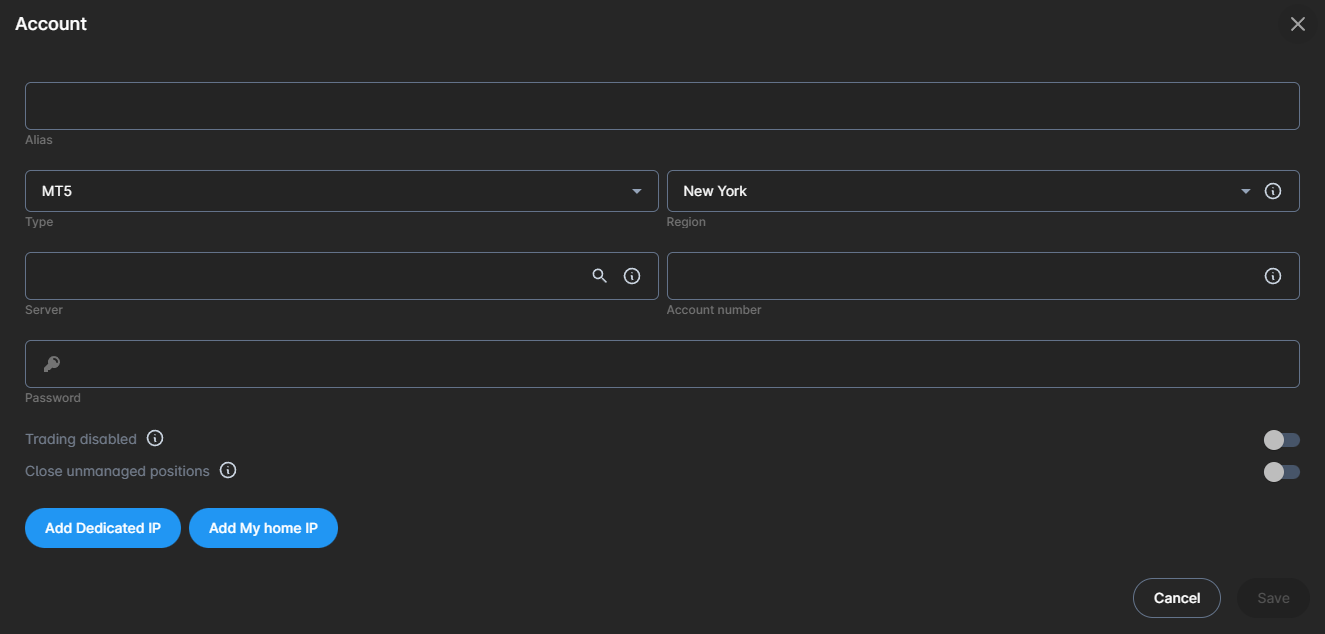
The Account Setup Dialog allows you to connect a new trading account to your MetaCopier project.
Fields & Options
- Alias: A custom name for your account.
- Type: Select your platform type (see supported platforms)
- Region: Choose the region closest to your broker server for optimal latency
- Server: Enter the name of your broker’s server. You can also use the magnifier icon to search for supported servers.
- Account Number: Your trading account number, as provided by your broker.
- Password: The password used to access the trading account. Ensure you use either the investor (read-only) or trader password, depending on your use case.
Advanced Options
- Trading disabled: When enabled, puts the account in read-only mode, preventing any new trades from being opened or existing trades from being modified or closed. Use this when you want to use the account as a read-only master.
- Close unmanaged positions: When enabled, any open positions on the account that were originally opened by MetaCopier but are no longer managed, due to technical issues, will be automatically closed after 10 minutes. However, this mechanism can occasionally result in false positives. For example, if there are open positions by MetaCopier and the copier is removed, such positions are marked as unmanaged and will be closed. If disabled, such unmanaged positions will remain open, and a notification will be sent to the notification center or to Telegram (if configured). In this case, manual intervention is required. We recommend keeping this option disabled to avoid accidental closures. This option also controls what happens to positions recognised as manually opened when a copier uses hide comment: they are only closed if this option is enabled.
- Add Dedicated IP: Assign a dedicated IP address to this account
- Add My Home IP: Assign a home IP address to this account