🤖 EA hosting
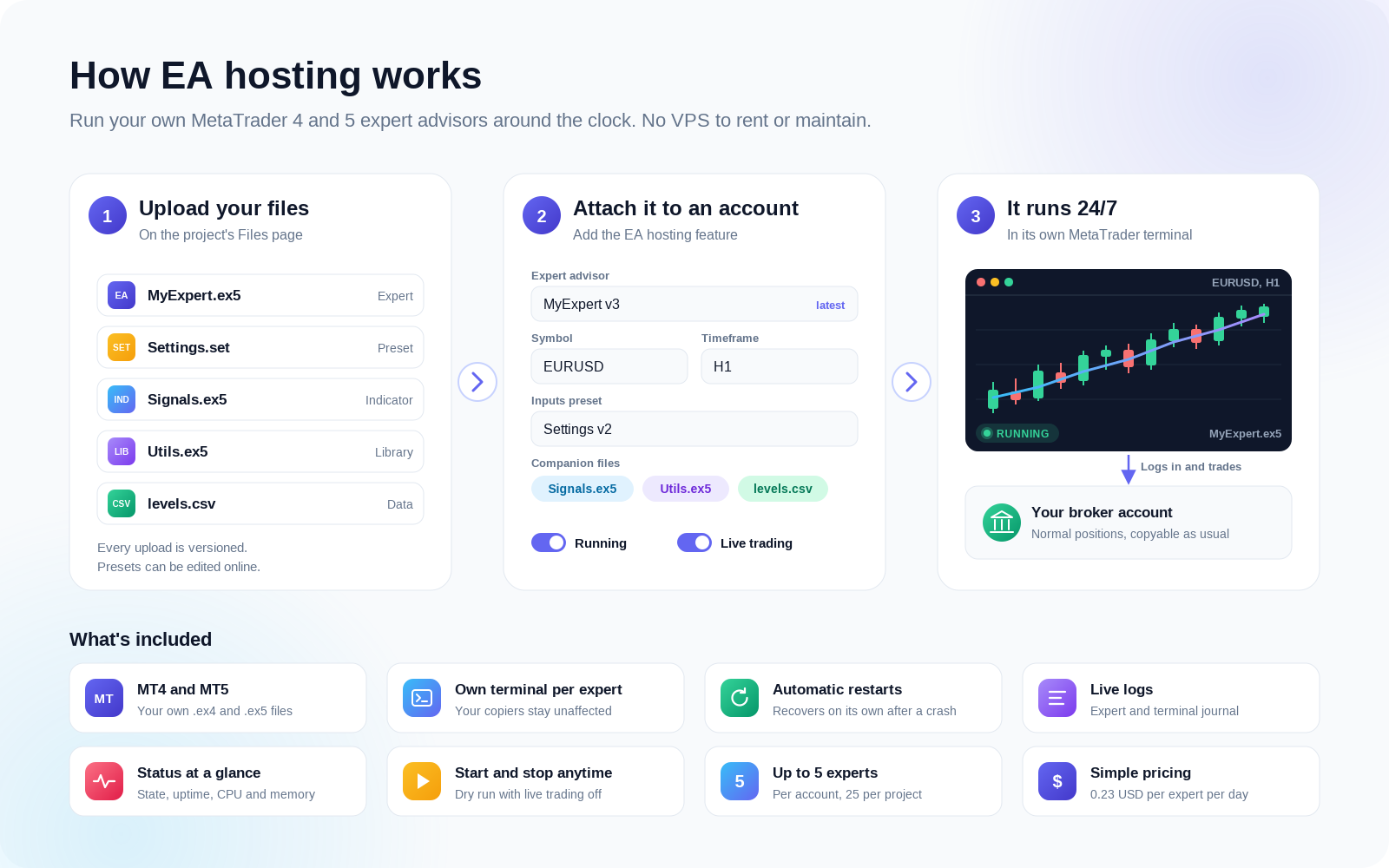
With EA hosting you can run your own expert advisors (EAs) on MetaTrader 4 and MetaTrader 5 accounts connected to MetaCopier. You upload the compiled expert once, pick the account, symbol and timeframe, and MetaCopier keeps the expert running 24/7. There is no VPS to rent and no terminal to maintain.
Every hosted expert runs in its own MetaTrader terminal, separate from the one MetaCopier uses for copying. If an expert crashes or hangs, your copiers keep working.
EA hosting runs on dedicated hardware with reserved CPU and memory for every terminal, never overcommitted, and on 2N redundant infrastructure with automatic failover. If a hosting server fails, your expert is started on another server within a few minutes, without any action on your side. See Redundancy and failover.
EA hosting only runs experts on your connected accounts. MetaCopier does not offer backtesting or forward testing of experts.
EA hosting is currently in beta. Behaviour and limits may still change, and occasional issues are possible. Please report any problems to support.
Requirements
- The account is a MetaTrader 4 or MetaTrader 5 account. Other platforms are not supported.
- The account is active.
- You have the compiled expert file:
.ex5for MT5 or.ex4for MT4. Source files (.mq5/.mq4) cannot be run. - Experts bought or rented on the MQL5 Market are not supported. MetaTrader binds an activated Market product to the computer it was activated on, and it only starts when your MQL5 account is logged in to the terminal, so it cannot run on a hosted terminal. Use an expert you received as a standalone
.ex5/.ex4file instead. - Experts that check their licence online with their vendor need the vendor's licence server under WebRequest URLs. This is only possible on MT5.
How It Works
Before you start, connect the MetaTrader account the expert should trade on to your project and make sure it is active. See Connect your accounts.
For EA hosting you only need to add one account: the account the expert trades on. You do not need a second account and you do not need to set up a copier.
Step 1: Get the files from MetaTrader
- Open MetaTrader and click File → Open Data Folder.
- Go to
MQL5/Experts(MT5) orMQL4/Experts(MT4) and find the compiled expert, the file ending in.ex5or.ex4. If you only have the.mq5/.mq4source, open it in MetaEditor and click Compile first. - If the expert uses custom indicators or libraries, take their
.ex5/.ex4files from theIndicatorsandLibrariesfolders as well. - Optional: to run the expert with your own input values, attach it to a chart, open the Inputs tab, click Save and store the
.setfile. Without a preset, the expert runs with its compiled default inputs.
Step 2: Upload the files
- Open your project and click Files in the project navigation.
- In the Experts group, click the upload button of your platform (EA_MT5 for MT5, EA_MT4 for MT4) and select the expert. You can also drag the file onto the group.
- Upload indicators, libraries, the preset and data files the same way in the Indicators, Libraries, Presets and Data groups.
- Each file now appears in its group with its version and size.
Upload the file that matches the account platform. An .ex4 cannot run on an MT5 account and vice versa.
Step 3: Add the feature to the account
- Open Accounts in the project navigation.
- On the card of the MetaTrader account, click Features.
- Click the + button. The Add feature dialog opens.
- Search for Custom EA hosting and select it. The feature is only listed for MT4 and MT5 accounts.
Step 4: Configure the expert
Fill in the Custom EA hosting dialog:
- Expert advisor (.ex5 or .ex4): Select the expert you uploaded. If the list is empty, the file was not uploaded or was uploaded for the other platform. Go back to step 2.
- Symbol: Select the chart symbol exactly as your broker names it, including any suffix (e.g.
EURUSD.pro). - Timeframe: Select the chart timeframe the expert is meant for. The default is H1.
- Inputs preset (.set): Select your preset, or leave it empty to use the default inputs.
- Companion files: Add every indicator, library and data file the expert loads. Skip this if the expert needs none.
- WebRequest URLs (MT5 only): Add the servers the expert calls, for example the licence server of the vendor. Leave it empty if the expert does not call out.
- Leave Running, Live trading and Experts enabled switched on. To test the expert without placing real orders, switch Live trading off.
- Keep EA state (optional): Switch it on if the expert stores its progress in global variables or in its own files, for example a grid level, a martingale step or a trade counter.
- Auto-pause (optional): Choose when MetaCopier should pause the expert, for example while a risk limit of the account is hit or around high-impact news.
All options are explained under Settings.
Step 5: Save
Click the save button at the bottom of the dialog.
MetaCopier now transfers the files, starts a dedicated terminal, logs in to your broker and attaches the expert to the chart. This usually takes a minute or two.
Step 6: Check that the expert is running
- On the account card, a chip EA: <expert name> appears. Its colour shows the state, and hovering it shows the state as text. The state changes from Starting to Running as soon as the terminal confirms that the expert is loaded on the chart. The Expert Advisors overview on the Accounts page lists all hosted experts of the project.
- Click the chip to open Status and logs. Broker should show Connected and Expert should show Loaded.
- Switch the log source to Expert and check the messages your expert prints on start. Errors from
OnInit, missing files or rejected orders show up here. - If the state is Error, the reason is shown above the logs. See Troubleshooting.
From then on, MetaCopier checks the expert continuously and restarts it automatically if it stops unexpectedly (see Automatic restarts).
Update the expert later
- Upload the new build on the Files page with the same file name. It is stored as a new version, and the running expert is not affected yet.
- Open Features on the account and edit the Custom EA hosting feature.
- Select the new version (marked latest) under Expert advisor and click Save.
The terminal restarts with the new version. Open positions stay open during the restart.
The expert trades on your account like it would on your own terminal. Trades it opens are normal account positions, so they appear in MetaCopier and can be copied to other accounts like any other trade.
Files
The Files page of a project stores everything your experts need. A file uploaded there can be attached to an EA hosting deployment on any MetaTrader account of the project. You can upload a file with the upload button of its group or by dragging it onto the group.
| Group | Extension | Max size | Purpose |
|---|---|---|---|
| Experts | .ex5 / .ex4 | 8 MB | The compiled robot a deployment runs |
| Indicators | .ex5 / .ex4 | 8 MB | Custom indicators the expert calls |
| Libraries | .ex5 / .ex4 | 8 MB | Shared code the expert imports at runtime |
| Presets | .set | 64 KB | Input sets you can pick per deployment |
| Data | .csv, .txt, .json | 4 MB | Files the expert reads from the terminal folder |
| DLL | .dll | 16 MB | Native libraries, only after a staff review |
- Storage: Each project has 100 MB of storage. The storage bar at the top of the page shows how much is used. Switch on Unused only to see which files no deployment references any more.
- Versions: Uploading a file with the same name but different content creates a new version. The old version is kept, so running deployments are not affected. Uploading identical content again does not create a new version. A file name can have up to 20 versions.
- Delete: A file version that a deployment still uses cannot be deleted. Remove it from the deployment first. Under Used by, each file shows the account and the deployment that use it.
- Reserved names: File names starting with
mc_and a few internal names are reserved and cannot be uploaded. - Presets and data files must be text. Upload presets exactly as MetaTrader saved them: MT5 saves them as UTF-16 and MT4 as ANSI, and both are accepted, as is UTF-8.
Deleting an EA hosting deployment never deletes its files. Uploaded files cost nothing.
DLLs
DLL import is switched off on hosted terminals. It is switched on only for an expert that our staff have reviewed and compiled. Contact support if your expert needs DLL access.
How the review works:
- Send the source code to support@metacopier.io: the
.mq5/.mq4of the expert and, if it uses your own DLLs, their complete C/C++ project. Compiled files (.ex5,.ex4,.dll) cannot be reviewed. - Our staff review the source. The review takes a couple of days, up to one week.
- If the review is passed, we compile the expert and the DLLs ourselves and upload the result to the Files page of your project. The files are marked as Source reviewed by staff.
- Select the reviewed expert version in your deployment and attach the reviewed DLLs as companion files. The feature dialog then shows DLL access: enabled.
- Windows DLLs only (for example
kernel32.dlloruser32.dll): Only the expert source is needed. There is nothing extra to attach. - Your own DLLs: The source of every DLL is reviewed and compiled together with the expert.
DLL access is granted per file version. Only the files we uploaded after the review carry the review. If you upload a new version of the expert or of a DLL yourself, it is not reviewed and runs without DLL access. A DLL without review cannot be attached to an expert and is shown as Not reviewed in the feature dialog. For a changed expert or DLL, send the new source for a new review.
Running deployments that already use a reviewed version are restarted with DLL access automatically once the review is recorded. If a review is revoked, the terminal is restarted without DLL access.
The DLL must match the platform: 64-bit for MT5, 32-bit for MT4.
Settings
-
Expert advisor: The compiled expert to run. Only files matching the account platform are listed, because an
.ex4cannot load on MT5 and vice versa. Each entry shows the version, and the newest version of a file is marked latest. The deployment stays on the selected version, even if you upload a newer one later. To update the expert, upload the new version and select it here. -
Symbol: The chart symbol the expert runs on, exactly as your broker names it (e.g.
EURUSD,EURUSD.pro). In a template, the symbol is entered manually. -
Timeframe: The chart timeframe.
- MT5: M1, M2, M3, M4, M5, M6, M10, M12, M15, M20, M30, H1, H2, H3, H4, H6, H8, H12, D1, W1, MN1
- MT4: M1, M5, M15, M30, H1, H4, D1, W1, MN1
-
Inputs preset (.set): The input parameters of the expert. Create the file in MetaTrader with Save in the expert's Inputs dialog and upload it on the Files page. Without a preset, the expert runs with its compiled default inputs.
-
Companion files: Indicators, libraries and data files the expert loads at runtime. Upload them on the Files page first, then add them here. MetaCopier places each file in the matching MetaTrader folder (
Indicators,LibrariesorFiles). A preset is not a companion file; pick it under Inputs preset instead. Up to 20 companion files are allowed, and all files of a deployment together, including the expert, may not exceed 32 MB. -
Live trading: If switched off, the terminal rejects all orders of the expert. Use this for a dry run.
-
Running: Switch off to stop the expert and its terminal without deleting the deployment. It stays stopped until you switch it on again. The daily charge continues while the deployment exists.
-
Experts enabled: The terminal's master switch for experts. If switched off, the expert does not run.
-
WebRequest URLs (MT5 only): The servers the expert may call with
WebRequest(). Enter an address and press Enter or + to add it, or paste several addresses at once. Remove an address with its trash icon. MetaTrader refuses calls to any address that is not listed. Leave the list empty if the expert does not call out.- Enter the server address only, for example
https://api.example.com. If the server uses port 8443 or 9443, add the port, for examplehttps://api.example.com:9443. Paths, query strings and other ports are not allowed. - Only HTTPS is supported. Private, local and loopback addresses are refused.
- Up to 64 addresses.
- Licensed experts: If your expert checks its licence online with its vendor, add the vendor's licence server here. Ask the vendor which address the expert uses. Without it, the licence check fails and the expert usually refuses to trade. Do not switch on Start without WebRequest URLs if they cannot be set up for such an expert.
- MT4: Not supported. An MT4 expert that calls
WebRequest()cannot reach the internet on a hosted terminal. - Start without WebRequest URLs if they cannot be set up: Off by default. If the URLs cannot be set up when the terminal starts, the expert stays stopped with an error and is retried automatically. Switch this on if your expert works without
WebRequest(), for example when it only uses it for logging. The expert then starts anyway, itsWebRequest()calls fail until the next restart, and a warning is shown in its status.
- Enter the server address only, for example
-
Keep EA state: Off by default. Keeps the global variables and the files the expert writes across restarts. See Keep EA state.
-
Auto-pause: Pauses the expert while a risk limit, a profit target, the overall target or a news window is active. See Auto-pause.
Every change to the settings restarts the expert's terminal so the new configuration takes effect. Positions stay open during the restart. Changes to Auto-pause are the exception: they apply without a restart.
Keep EA state
Without this option, every start of the terminal begins with a clean state: global variables and the files the expert wrote to MQL5/Files (MT5) or MQL4/Files (MT4) are gone after a restart, a settings change, an automatic recovery or a move to another server. Files you attached to the deployment on the Files page are copied in again on every start.
Switch on Keep EA state if the expert remembers something between runs, for example its grid level, a martingale step, a trade counter or a daily drawdown baseline.
What is kept:
- The global variables of the terminal (
GlobalVariableSet()). Temporary global variables (GlobalVariableTemp()) are not kept, just as MetaTrader drops them when it closes. - The files the expert writes to
MQL5/FilesorMQL4/Files, including subfolders.
What is never kept:
- The expert itself, indicators, libraries, presets and companion files. They are deployed fresh from the Files page on every start, so an update always reaches the terminal. A file the expert writes with the same name as a companion file is replaced by the companion file.
- Executables, DLLs and log files.
- Files in the common folder of all terminals (
FileOpen()withFILE_COMMON). Write state files without this flag.
When the state is saved:
- When the expert stops, for example before a restart, a settings change or an auto-pause.
- Every 15 minutes while the expert runs, but only if something changed. After a crash of the server, the expert therefore restarts with the state from at most 15 minutes earlier.
MetaTrader writes global variables to disk only when the terminal closes or when the expert calls GlobalVariablesFlush(). If the terminal closes normally, nothing is lost. To also keep recent global variables after a crash, call GlobalVariablesFlush() after every important change. The same applies to files: what the expert has not yet written with FileClose() or FileFlush() is not on disk.
When the state is restored: On every start, before the expert is loaded, also on another hosting server. This includes a restart, a settings change, an automatic recovery, a server move, an update to a new expert version, a different symbol or timeframe, and switching Running off and on.
When the state is deleted:
- You click Reset in Status and logs. The expert starts with a clean terminal at its next start. If the expert is stopped with an error, Reset and restart starts it again right away.
- You switch Keep EA state off.
- You delete the feature or the account. After deleting an account, the state is removed within about an hour.
Limits: Up to 10 MB compressed, 50 MB uncompressed and 2,000 files. The state does not count against the storage of the Files page. If the expert writes more, the state is not saved, the last state that fitted is kept, and a warning is shown in the status.
In Status and logs, the EA state card shows when the state was last saved, how many files it holds and its size. Download gives you a ZIP of the state. Reset deletes it.
If a saved state cannot be restored, the expert is not started with a clean terminal, because that could make it trade with a wrong state. It stays in the error state. Download the state to check it, then click Reset and restart in Status and logs. The expert starts again with a clean terminal.
Auto-pause
Auto-pause stops the expert while a condition is active and starts it again once the condition is gone. The terminal is stopped, so the expert cannot open new trades.
A pause never closes positions or deletes orders. Positions the expert opened stay open while it is paused. If you want positions closed, use the actions of the risk limit or target itself.
Conditions:
- Pause on risk limit: While a risk limit of the account (actual, daily, weekly or monthly) is hit. Risk limits of copiers are ignored.
- Pause on profit target: While a daily, weekly or monthly profit target of the account is hit.
- Pause on overall target: While the overall target of the account is hit.
- Pause around news: During a blackout window around matching events of the economic calendar. Set the minutes before and after the event (0 to 240, default 15) and choose the events by impact, currency, category and title, the same way as in the News filter. If the economic calendar cannot be reached, the expert is not paused.
- Resume automatically: On by default. The expert starts again once every condition has been clear for 5 minutes. If switched off, the expert stays paused until you click Resume now in Status and logs.
The pause takes effect within about 10 seconds. You can change the conditions at any time without restarting the expert.
Manual resume: After the third pause because of a risk limit within 24 hours, the expert always waits for a manual resume, even if Resume automatically is on. This prevents an expert from being started and stopped again and again. The same happens when Resume automatically is off. The expert can then be started again by:
- clicking Resume now in Status and logs (only possible once no condition is active anymore)
- switching Running off and on, or deleting the feature
- switching off all auto-pause conditions
While paused, the expert is shown as Paused together with the reason, for example Paused, risk limit hit or Paused, news: Non-Farm Payrolls. For a news pause, the status also shows when the expert is expected back. With notification rules, you can be notified about the events Expert Advisor auto-paused and Expert Advisor resumed.
The daily charge continues while the expert is paused. Switch on Keep EA state together with auto-pause, so the expert finds its global variables and files again after the pause.
Limits
- Experts per account: 5
- Experts per project: 25 by default. Contact support if you need more; the limit can be raised per project. The limit of 5 per account cannot be raised.
- Resources per terminal: Every hosted terminal has 40 % of one CPU core (0.4 vCPU) and 200 MB memory reserved on dedicated hardware. MetaCopier does not overcommit CPU or memory, so other experts cannot slow yours down. This is also the upper limit. CPU is measured as a share of one core, so 100 % means one full core. Windows Task Manager shows CPU as a share of all cores instead, so the same load appears much lower there. The status view warns you once an expert reaches half of the limit. An expert that stays above the limit is stopped with Resource budget exceeded. This usually points to an endless loop or to arrays and history data that keep growing.
Status and logs
Open the EA hosting feature of an account and click Status and logs. You can also open it from the Expert Advisors overview on the Accounts page.
States
| State | Meaning |
|---|---|
| Starting | The terminal is starting, logging in to the broker and loading the expert. |
| Running | The terminal confirmed that the expert is loaded on the chart. |
| Paused | The expert was stopped by Auto-pause. Positions stay open. |
| Error | The expert stopped. The reason is shown in the status view. |
| Stopped | The expert is not running. |
Status
- State: The current state (see above).
- Broker: Whether the terminal is Connected to your broker.
- Expert: Whether the expert is Loaded on the chart.
- Uptime: How long the expert has been running since the last start.
- CPU and Memory: The current usage of the terminal, CPU as a share of one core, including a warning when it gets close to the limit.
- Restarts: How often the expert was restarted automatically.
- Last lifesign: When the terminal last reported.
If the expert is in an error state, the reason is shown in an alert above the logs. If it is paused, the alert shows the reason of the pause, since when it is paused and, for news, when it is expected back. If it waits for a manual resume, click Resume now.
With Keep EA state switched on, the EA state card shows the last saved state with Download and Reset.
Logs
The log view shows the logs of the hosted terminal, just like the Journal and Experts tabs in your own MetaTrader.
- Source:
- Expert: What the expert prints (
Print(),Alert(), errors fromOnInit, trade results and so on). This is the log you usually need to debug an expert. - Terminal: The terminal journal (broker connection, expert loading, trade requests).
- Both: Both logs on one timeline.
- Expert: What the expert prints (
- Follow: Automatically loads new lines every few seconds. Click Pause to stop following.
- Reload: Loads the latest lines again.
- Download: Downloads the full retained log history as a text file.
The log view only shows the most recent part of the history. Use Download for everything that is retained.
Expert Advisors overview
If at least one expert is hosted in the project, the Accounts page shows an Expert Advisors panel. It lists every hosted expert with its state, account, expert name, symbol, timeframe, CPU and memory usage, the number of automatic restarts and the last error. A paused expert shows the reason of the pause. The header shows how many experts are in each state. Click an expert to open its status and logs.
Automatic restarts
If an expert stops unexpectedly, for example because the terminal lost its connection, MetaCopier restarts it automatically. Repeated failures are retried with an increasing delay of 1, 2, 5 and then 15 minutes.
If the expert is no longer loaded on the chart while the terminal is connected, it may have removed itself on purpose, for example after reaching its own daily loss limit. MetaCopier then does not restart it and shows it as an error. Pause and resume it in Status and logs to start it again. Only if the expert disappears within 2 minutes after its start or after a broker disconnect is it restarted automatically, because many experts remove themselves when they find the terminal offline.
The same applies to the broker connection: if the terminal is disconnected from your broker and does not reconnect by itself within 3 minutes, the terminal is restarted. Meanwhile, the Expert Advisors overview on the Accounts page shows Broker disconnected.
Errors that a restart cannot fix are not retried, so the expert stays in the error state until you fix the cause:
- the expert file is not valid for the platform
- the expert needs DLL access
- the account credentials are wrong
- a companion file is missing
- the symbol does not exist at the broker
- the expert exceeded the resource limits
- the saved EA state could not be restored
Fix the cause and save the feature again to restart the expert. For a state that could not be restored, use Reset and restart in Status and logs.
Redundancy and failover
A single VPS or a single hosting server is a single point of failure: if it goes down, your expert stops trading until someone fixes it. Many low-cost EA hosting offers work this way. MetaCopier EA hosting does not depend on one server:
- Dedicated hardware: Every terminal has its CPU and memory reserved. Resources are not shared or overcommitted, so a busy neighbour cannot slow down your expert.
- 2N redundancy: The hosting runs on 2N redundant infrastructure. There is always enough spare capacity to take over every hosted expert if servers fail.
- Automatic failover: Every terminal reports to MetaCopier continuously. If a hosting server stops reporting for 3 minutes, your expert is started on another healthy server. Servers that keep failing are skipped automatically. You do not need to do anything.
- Same IP: If the account uses a dedicated IP, the expert connects through the same IP on the new server.
- Same state: With Keep EA state switched on, the expert gets its global variables and files back on the new server.
Open positions stay open at the broker during a failover. While the expert is being moved, it does not trade, so it may miss signals for a few minutes.
Troubleshooting
| Message | What to do |
|---|---|
| The terminal refused the expert advisor file. | The file was compiled for the other MetaTrader version or is damaged. Upload the .ex5 for MT5 or the .ex4 for MT4. |
| The expert advisor is missing a file it needs. | The expert calls a custom indicator, library or data file that is not attached. Check the Expert log for the file name, upload it and add it as a companion file. |
| This expert advisor tries to load a DLL. | DLL import is switched off. See DLLs. |
| The symbol is not valid. | Enter the symbol exactly as your broker names it, including any suffix. |
| The terminal could not log in with these account credentials. | Check the login, password and server of the account. |
| The expert advisor used more CPU or memory than a hosted terminal is allowed to use. | Check the expert for endless loops or data that keeps growing. See Limits. |
| The expert advisor did not start within the expected time. | The terminal did not confirm the expert within 2 minutes. It is retried automatically. Check the Terminal log if it keeps happening. |
| The hosting server stopped reporting for this expert advisor. | The expert is restarted automatically. No action is needed. |
| The expert advisor is no longer loaded on the chart. | Check the Expert log for why it removed itself, e.g. its own loss limit or a failed check. Pause and resume it to start it again. See Automatic restarts. |
| The terminal lost the connection to the broker and did not reconnect within 3 minutes. | The terminal is restarted automatically. If it keeps happening, check the Terminal log, check that the broker server of the account is still correct, and whether it is reachable or under maintenance. |
| No hosting capacity is free at the moment. | Try again in a few minutes. |
| This file is still used by an expert advisor. | A deployment still uses this file version. Remove it from the deployment, or select another version, before deleting it. |
| This file could not be read as text. | Upload the preset exactly as MetaTrader saved it, without opening and re-saving it in another editor. Otherwise save it as UTF-8 and upload it again. |
| The storage limit of this project is reached. | Delete files you no longer need. Switch on Unused only on the Files page to find them. |
| This file already has the maximum number of versions. | Delete an older version before uploading a new one. |
| This account already has the maximum number of hosted expert advisors. | Up to 5 experts per account are allowed. Delete one before adding another. |
| The saved global variables and files could not be restored. | Download the state in Status and logs and check it, then click Reset and restart. The expert starts again with a clean terminal. |
| The saved EA state cannot be loaded right now. | The expert waits instead of starting without its state and is retried automatically. No action is needed. |
| The expert advisor writes more files than can be kept. | Let the expert delete files it no longer needs. The last state that fitted is kept. See Keep EA state. |
| The expert advisor cannot be resumed yet because an auto-pause condition is still active. | Resume now only works once no condition is active anymore. Wait until the risk limit, target or news window is over, or switch the condition off. |
If the expert loads but does not trade, check that Live trading and Experts enabled are switched on, and look at the Expert log for trade errors returned by the broker.